You can use Quick Create functionality to add new products rapidly during purchase order or sales processes, helping capture opportunities without interrupting customer service or procurement workflows.
This improves your retail operations efficiency by enabling on-the-fly product creation with essential details, with properly configured quick create workflows typically reducing lost sales from missing SKUs and faster purchase order processing.
The Quick Product Create feature allows you to add new products to Retail Express quickly while creating a Purchase Order. Using the feature you can:
- Create an individual style/group with multiple sizes and colours in only a few short steps (instead of creating each variant individually)
- Auto-generate Supplier SKU codes for styles/groups
- Enter the same Short Description for all products, or automatically create unique descriptions for products in a style e.g. Short Description + Size + Colour - "Basic tee 10 White"
- Create new - Product Type, Size, Colour etc
- Add quantities for the new products
To access the Quick Product Create feature, you will need to create a Purchase Order manually in Retail Express.
For more information on how to create a Purchase Order please refer to Purchase Orders - Create a Purchase Order.
Create Product
- Navigate to Inventory → PO Management
- Click Create PO

- Select Create a new Purchase Order
- Choose Create PO Manually
(Alternatively, you can upload a PO via MS Excel)

- Enter Required Purchase Order Details and select Create
- Retail Express will:
- Generate a Purchase Order ID
- Open the Purchase Order, allowing products to be searched or added

- Click on Create Product

- Add a Short Description (name)
- Enter a unique Supplier SKU for the product (additional barcodes can be added to the product later once it's been created)
- Enter a Manufacturer SKU (refer to the Create a Style section if creating a product that has multiple size and colour variants)

- To create a new Product Type select "--Add New--"; a window will pop up to allow you to add the new details. This feature is also available for the Brand, Season, Size and Colour attributes.
- Mandatory fields are highlighted with a red border and an asterisk
- Click Create and Add
- The product will be simultaneously added to the Purchase Order as well as created in your database

Serial Number Capture for Products
Retail Express supports serial number capture at the product level, allowing retailers to track individual items during the sales and fulfilment process.When enabled, serial numbers can be recorded for applicable products at POS and during fulfilment, helping improve traceability, warranty tracking, and inventory accuracy.
When creating or editing a product, one of the following serial number options can be applied:
- Required — A serial number must be recorded before the product can be fulfilled or the sale finalised.
- Optional — A serial number can be recorded, but it is not mandatory to complete the sale.
- Disabled — Serial number capture is not used for the product.
By default, all existing products and newly created products are set to Disabled unless the serial number option is explicitly updated.
For more details on serial number capture, click here.
Quick Create Product from POS
Create New Attributes On The Fly
Back-office users can conveniently create attribute values within the POS Product Create page. This enhancement extends to all attributes, including custom types on the "additional details" page, and product types.


Additional Details:
To access Quick Create Product option from POS, Go to >> Product Page >> Create Product.
Create Styles
This feature allows you to create products of the same style (referred to as a "Matrix Product") but with unique size and colour combinations (referred to as Variants).
During this process a unique Supplier SKU will be automatically created for each product using the Manufacturer SKU, however, this can be manually adjusted before the product is created if required.

- Click Create Style
- Enter a Short Description (the name of the products)
- The Variant Description Pattern allows you to automatically create descriptions for your products to include size and/or colour attributes, or just the Short Description only
- Enter the Manufacturer SKU (Style Code) used to group the products together
- To create a new attribute select "--Add New--"
- Enter the Price for the variants (this can be manually adjusted in the next step if required)
- You don't have to select both size and colour, for example, your style may have different sizes only. Click the Add New button to create new colours or sizes as required.
- Click Configure Variants
- The products to be created will be displayed
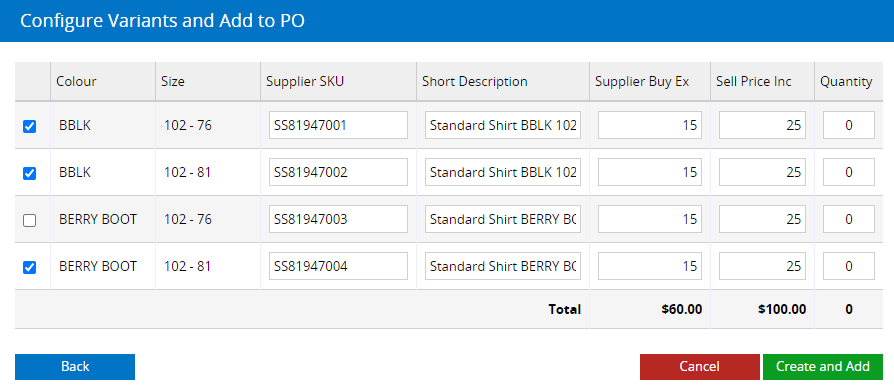
- Untick the box in the first column if you don't want a Variant combination to be created (the product will not be added to the PO either).
- Edit the Supplier SKU, Short Description or Price fields if required (additional barcodes can be added to the products later once they've been created)
- To create the product but not add the product to the Purchase Order leave the product ticked but the Quantity as 0
- Click Create and Add