Important – Changes to card surcharges in Australia
From 1 October 2026, businesses can no longer apply card payment surcharges to payments made using Visa, Mastercard, American Express or eftpos prepaid, debit and credit cards.
If you have surcharges configured for these payment types in Retail Express, review your surcharge settings and deactivate them where required.
For more information, refer to the ACCC – Card surcharges guidance.
If your business is based in Australia and you currently have card surcharges configured in Retail Express for Visa, Mastercard, American Express or eftpos payments, you can edit or delete those surcharges from your Retail Express settings.
If a surcharge cannot be deleted because it has already been used on historical orders, you can deactivate it from the relevant Payment Type to prevent it from being applied to future transactions.
Editing/deleting a Surcharge
To edit or delete an existing surcharge, open the Surcharges settings in Retail Express and locate the surcharge you want to update.
- Navigate to Settings > Surcharge

- The list of surcharges will be displayed at the bottom
- Click the Pencil icon to edit the surcharge
- Click the Bin icon to delete the surcharge
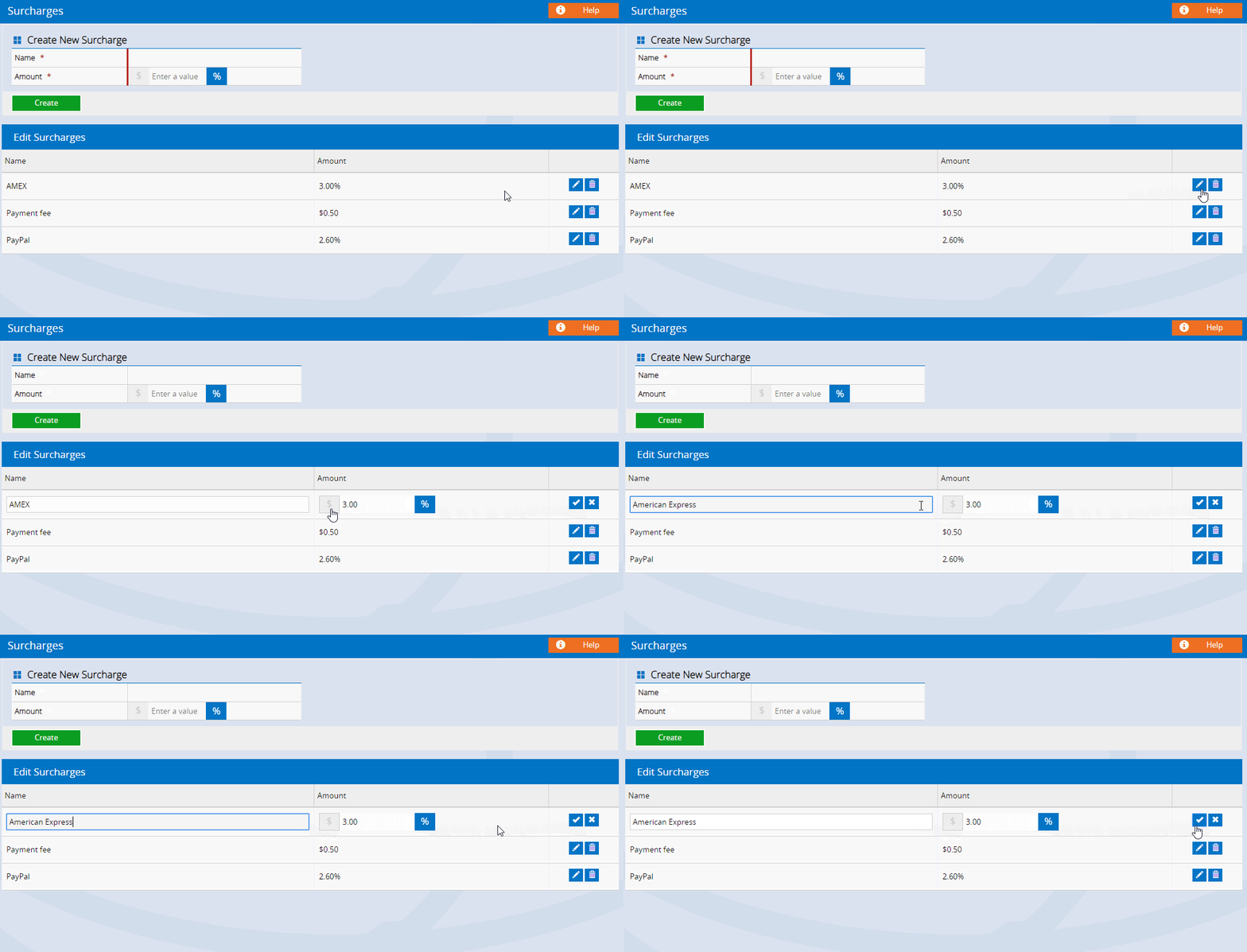
- Amend the Name or Value as required
- Click the Tick button to save the changes
- Once the details are update, you will see a notification confirming delete/edit of the surcharge.

If a surcharge is currently activated against a Payment Type (even if the Payment Type is not enabled) or there are historical orders with the Surcharge, the Surcharge cannot be deleted.
Deactivate a Surcharge
Once a Surcharge has been created it will need to be deactivated against a Payment Type before it can be deleted in POS.
To deactivate a surcharge:
- Navigate to Settings > POS Settings > Payment Surcharges

- Select a Payment Type
- Click the Trash Can icon to remove a Surcharge from the Activation list.
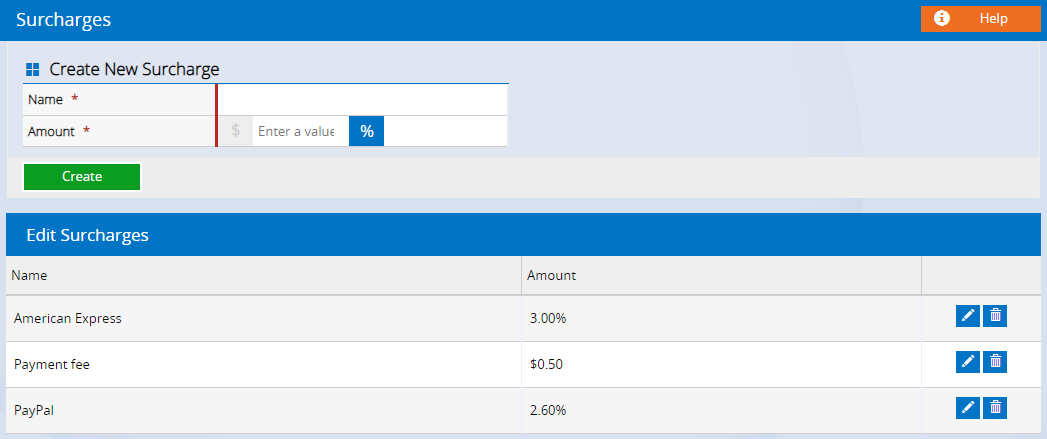
- Press OK to the message
- Log out of POS and back in again to refresh the changes
If a Surcharge is deleted from the Activation list the Surcharge will still exist in the system (it just hasn't been activated). You will need to navigate to Settings > Surcharge to delete the Surcharge from the Surcharges list
If you use Tyro or PC-EFTPOS/Linkly, surcharges may be configured in two places:
Retail Express: Check whether a surcharge is assigned to the relevant Payment Type and deactivate or remove it where required.
Payment terminal/pinpad: A surcharge may also be configured directly through Tyro or Linkly. These settings are managed outside Retail Express.
If a surcharge is being applied by the payment terminal, contact Tyro or Linkly to have the pinpad configuration updated.