What you can use to transfer files to and from the Neto system depends on where you are sending the information to/from and how you are sending it.
File Transfer Protocols
SFTP
SFTP is the only way to access your Neto file server. Register to gain access to SFTP to your Neto site. SFTP can be used to make a backup of your website assets, such as product images, banners, or theme files. SFTP must be used for external systems when importing from or exporting to Maropost, FTP is not supported.
FTP
The Neto import/export system can only send or receive files via FTP. This feature is available from the Neto dashboard by navigating to Setup & Tools > Import or Export Data. FTP exports and imports are useful to transfer order, customer, and product data between systems. FTP must be used for for Maropost to importing from or exporting to external systems, SFTP is not supported.
FTPS
Neto does not support FTPS in any fashion.
Request SFTP Access
To access your websites file system you need to first request SFTP access from our support team.
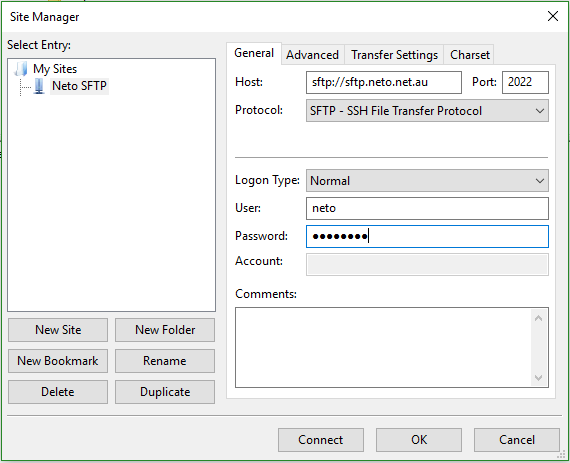
After you have received your SFTP details, you can use an FTP client such as FileZilla to log into the fileserver for your website:
Host: sftp://sftp.neto.net.au
Username: (Provided by Neto support)
Password: (Provided by Neto support)
Port: 2022
Maximum simultaneous transfers: 1
Dropshipper SFTP Access
When requesting SFTP access for a dropshipper, ensure that you select the appropriate checkbox when submitting the form. This will create a folder called ~/web_users/[username]. This will be the home directory for this login instead of the root directory so that the provider can upload and download content in that folder without affecting any files outside of it.
SFTP Access for Approved Partners
Neto partners don't count towards your user limit. More information about this process is available on the Request Access for a Partner article.