Use the “TouchCart” add-on to transform your store into a native mobile application available on both the Apple App Store and Google Play. Deliver an enhanced shopping experience to your customers through faster performance, seamless navigation, push notifications, exclusive in-app offers, and streamlined one-tap checkout.
Add-on built by: TouchCart
Add-on website: Visit the add-on website!
Add-on support link: For support with this add-on, contact TouchCart.
Install the TouchCart Add-on
Follow the steps below to set up the TouchCart add-on:
- Log in to your Neto Control panel and visit the Addons section via Navigation.
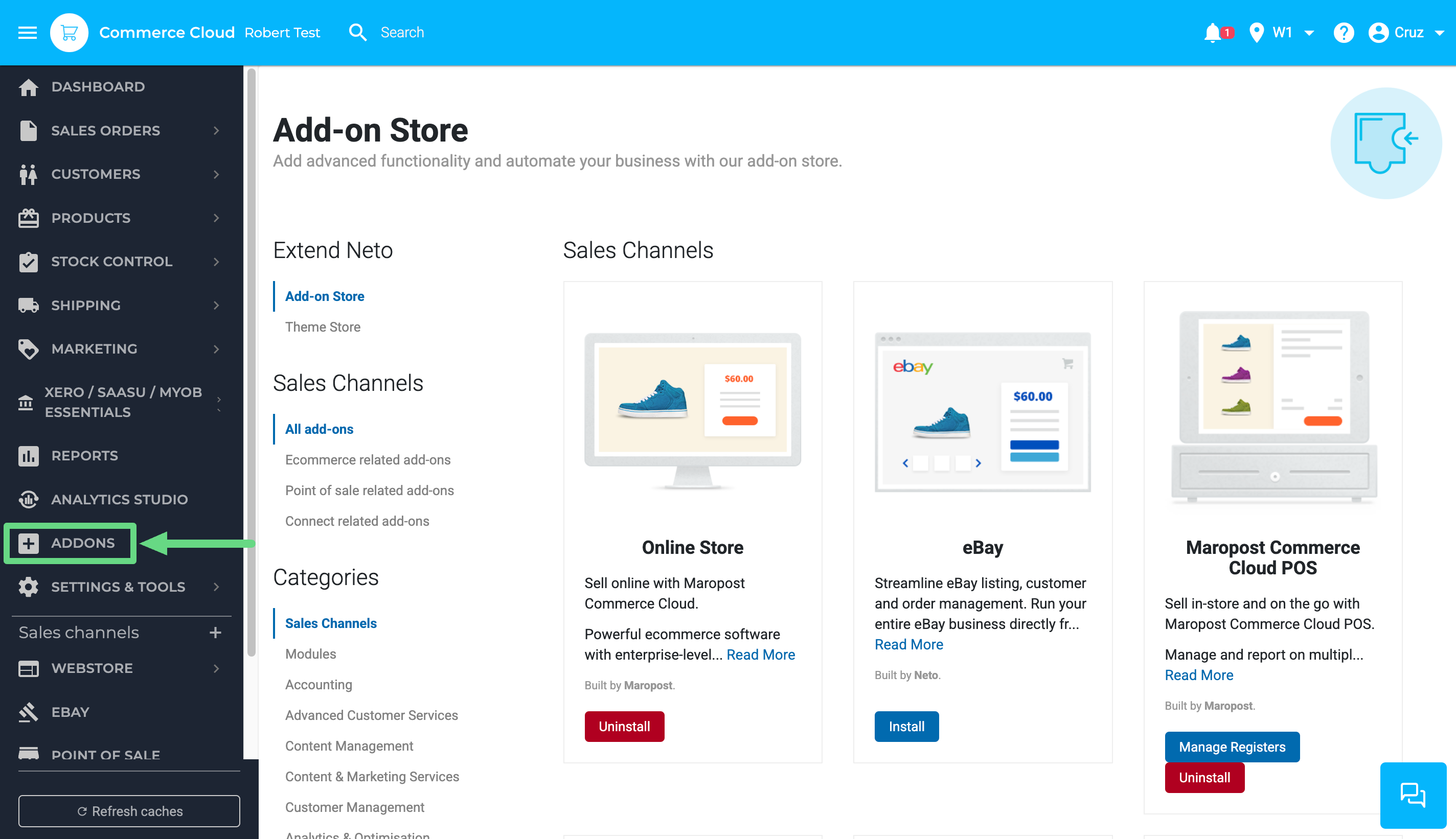
- Navigate to the Sales Channel section, locate the TouchCart add-on, and select Install.
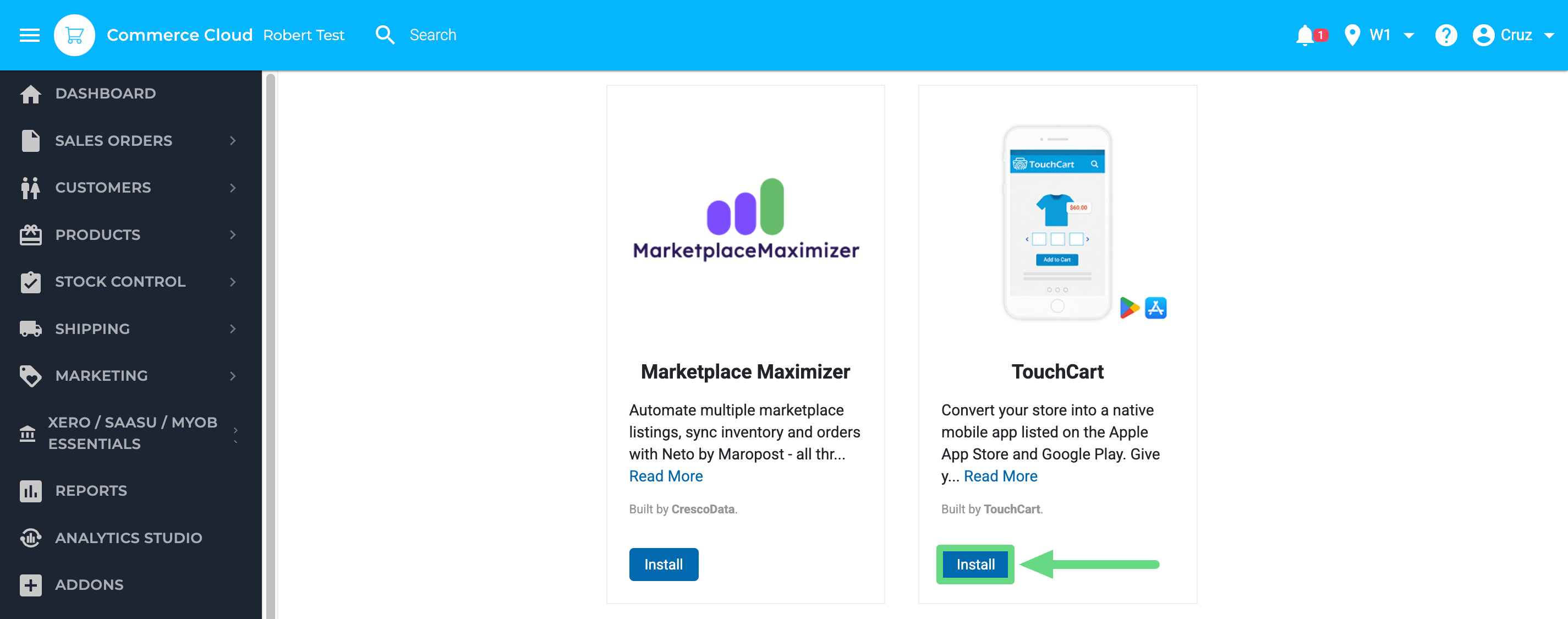
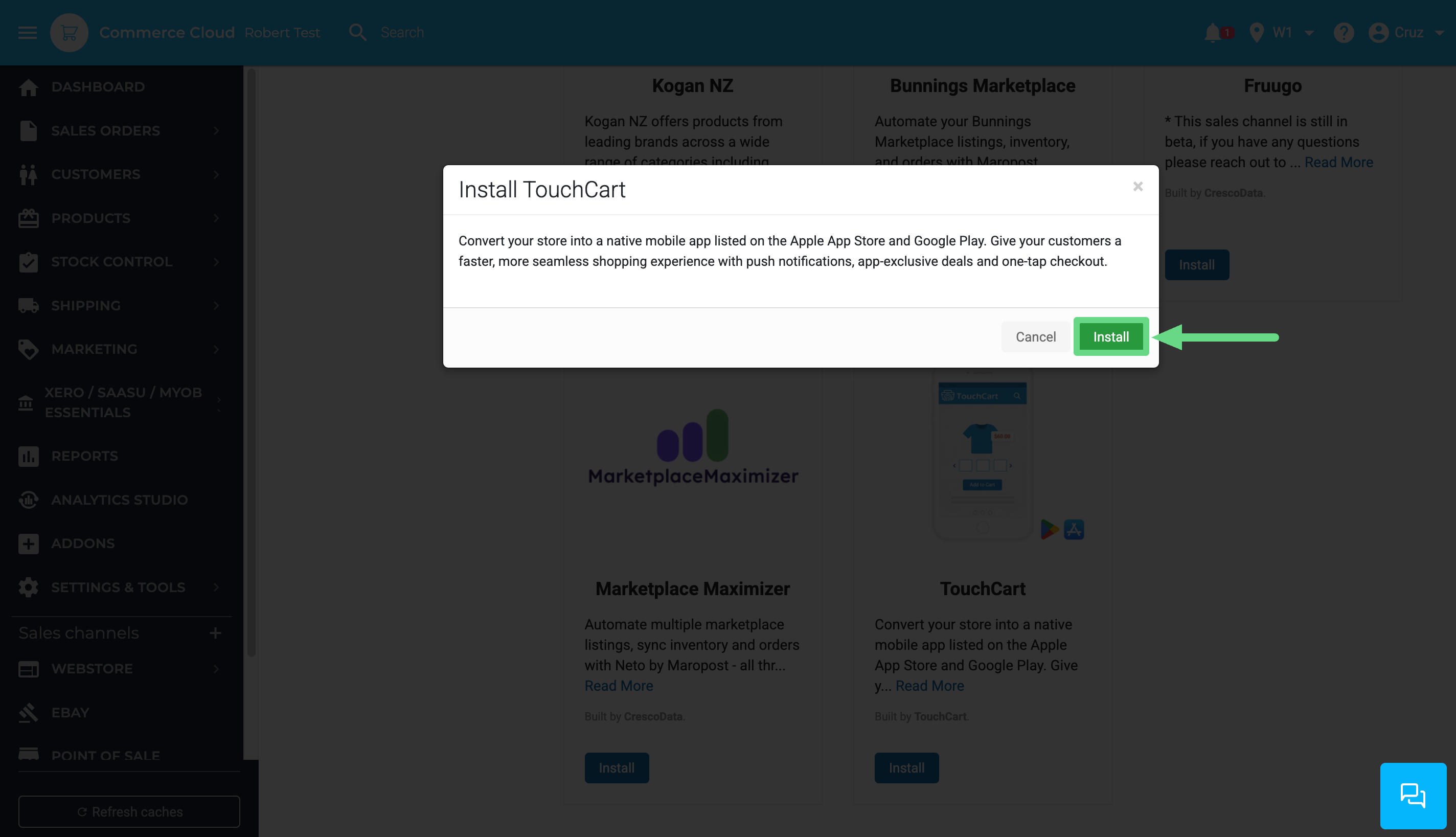
- When the pop-up window opens, click Install. Please note that TouchCart billing is handled separately from Neto and won't be counted against your sales channel limit.
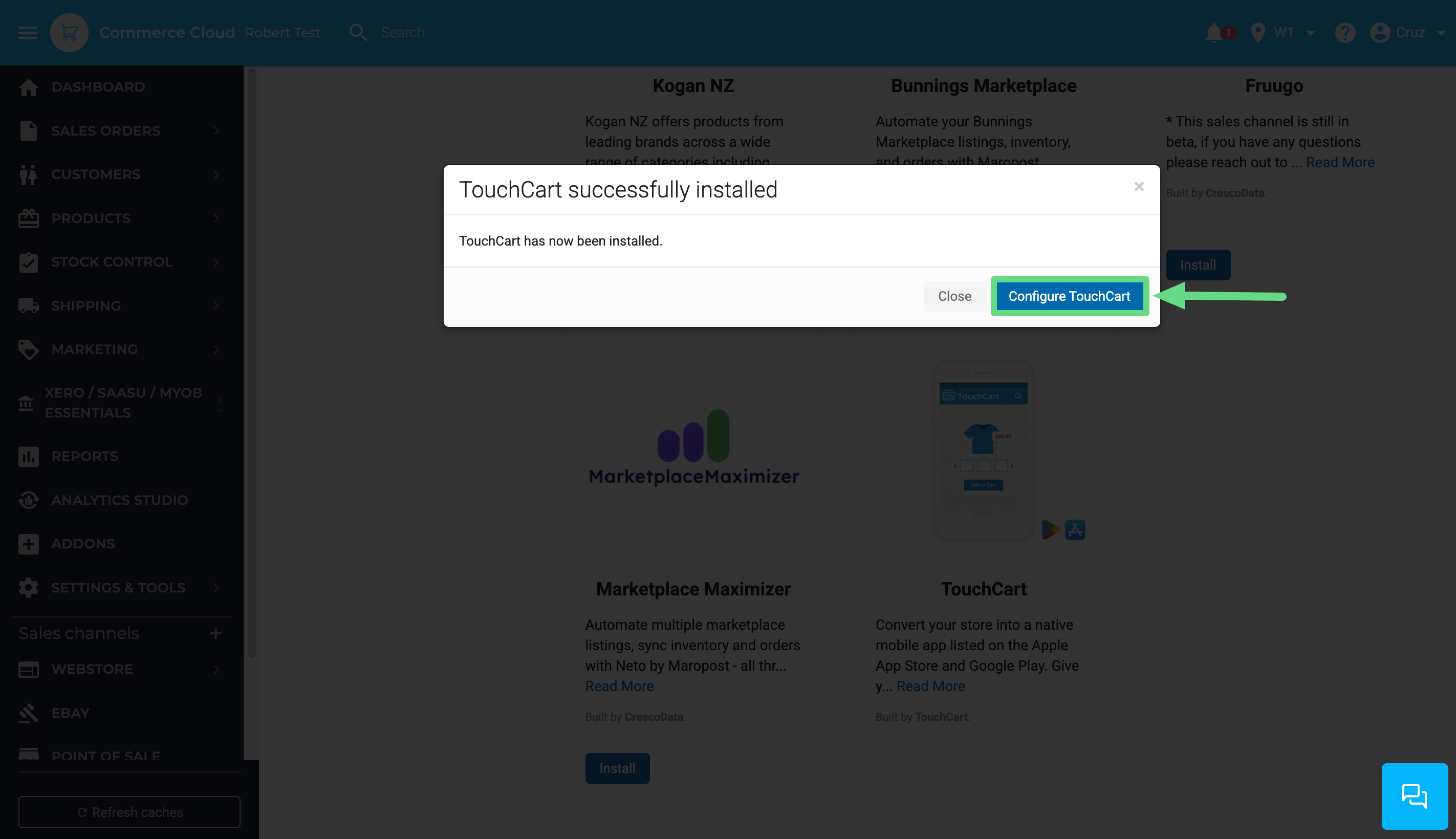
- Select Configure TouchCart to proceed.
Set up the TouchCart Add-on
After installation, you can access TouchCart through your Neto control panel.
- To get there, go to the Sales Channel section from the Navigational sidebar menu and select Other >> TouchCart. Alternatively, find the TouchCart add-on on the Addons page and click Configure.
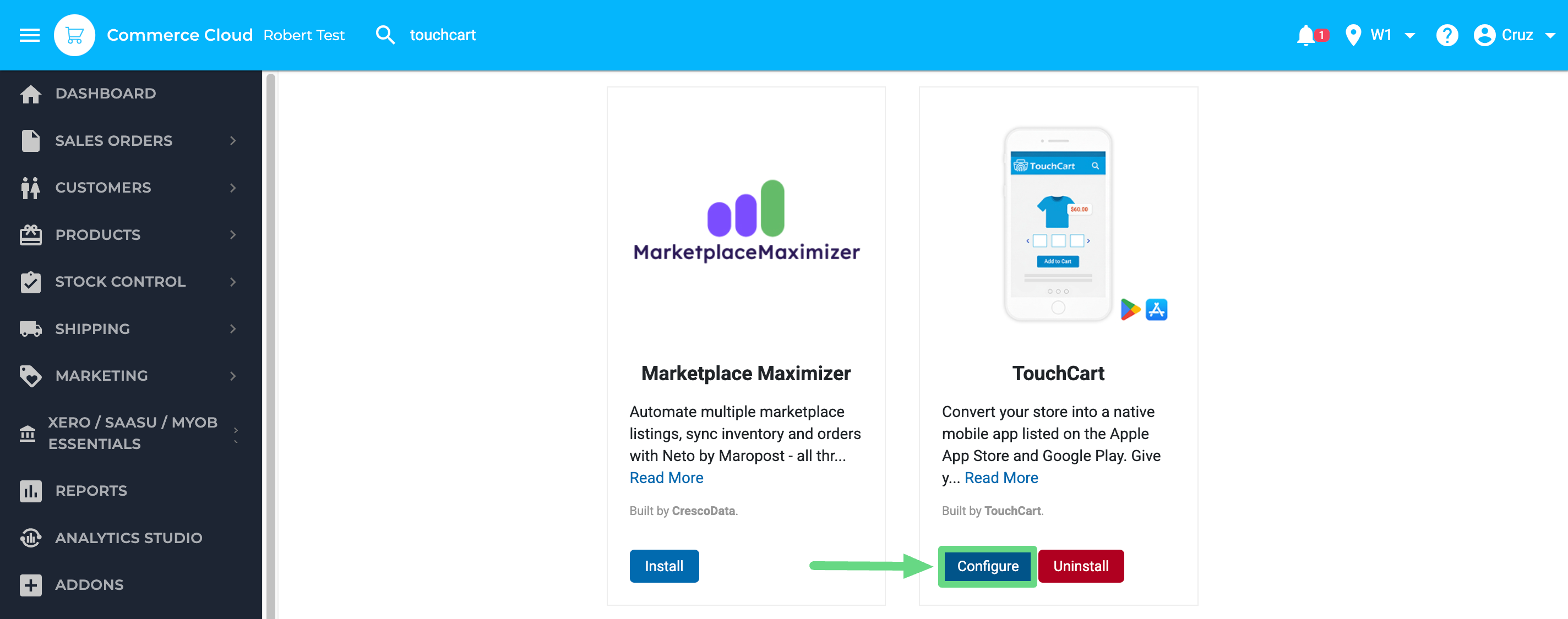
- This will take you to TouchCart, where you'll need to log in or sign up for an account if you haven't already.
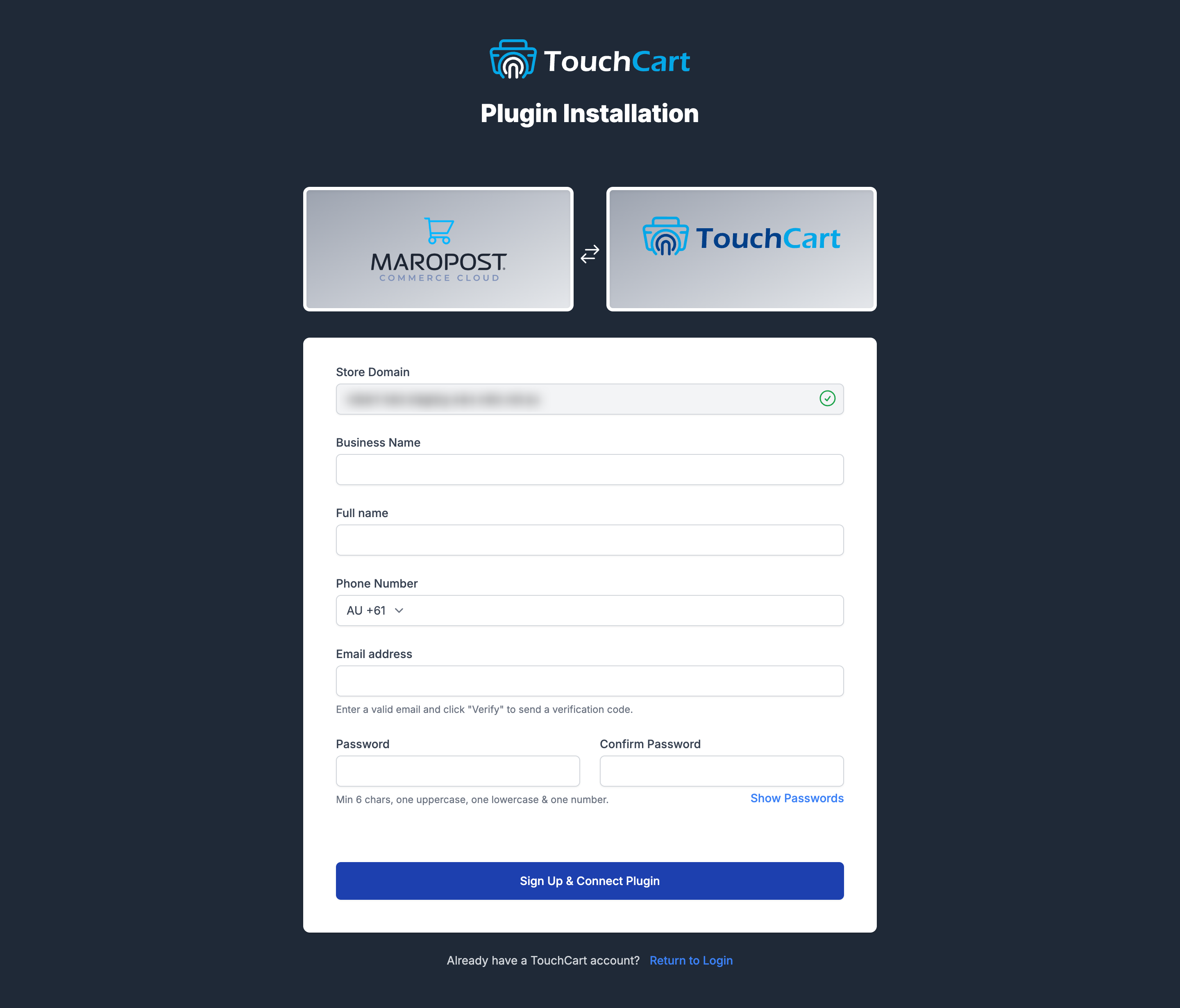 For first-time users, the TouchCart team will contact you to assist with the onboarding process or help you schedule a demo with them. Additional details are available on the TouchCart website.
Approve Products to List on TouchCart
To display and synchronize products on TouchCart, you must designate them as “Approved to show on TouchCart” within your Neto control panel. There are three methods for approving products in Neto:
- Individually Approve Products
- Approve Products in Bulk
- Approve Products via Import
Individually Approve Products
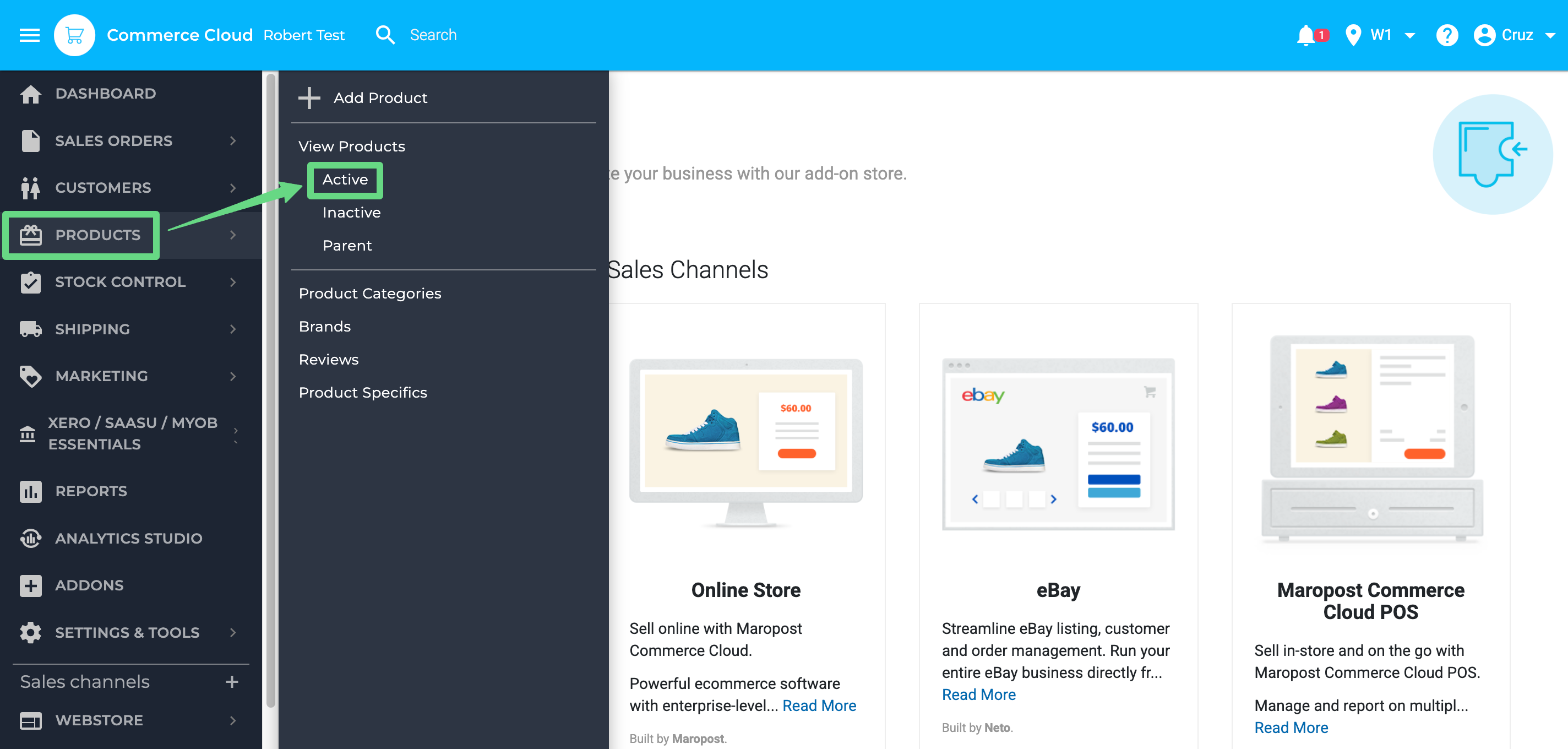
- From your Neto control panel, go to Products >> Active.
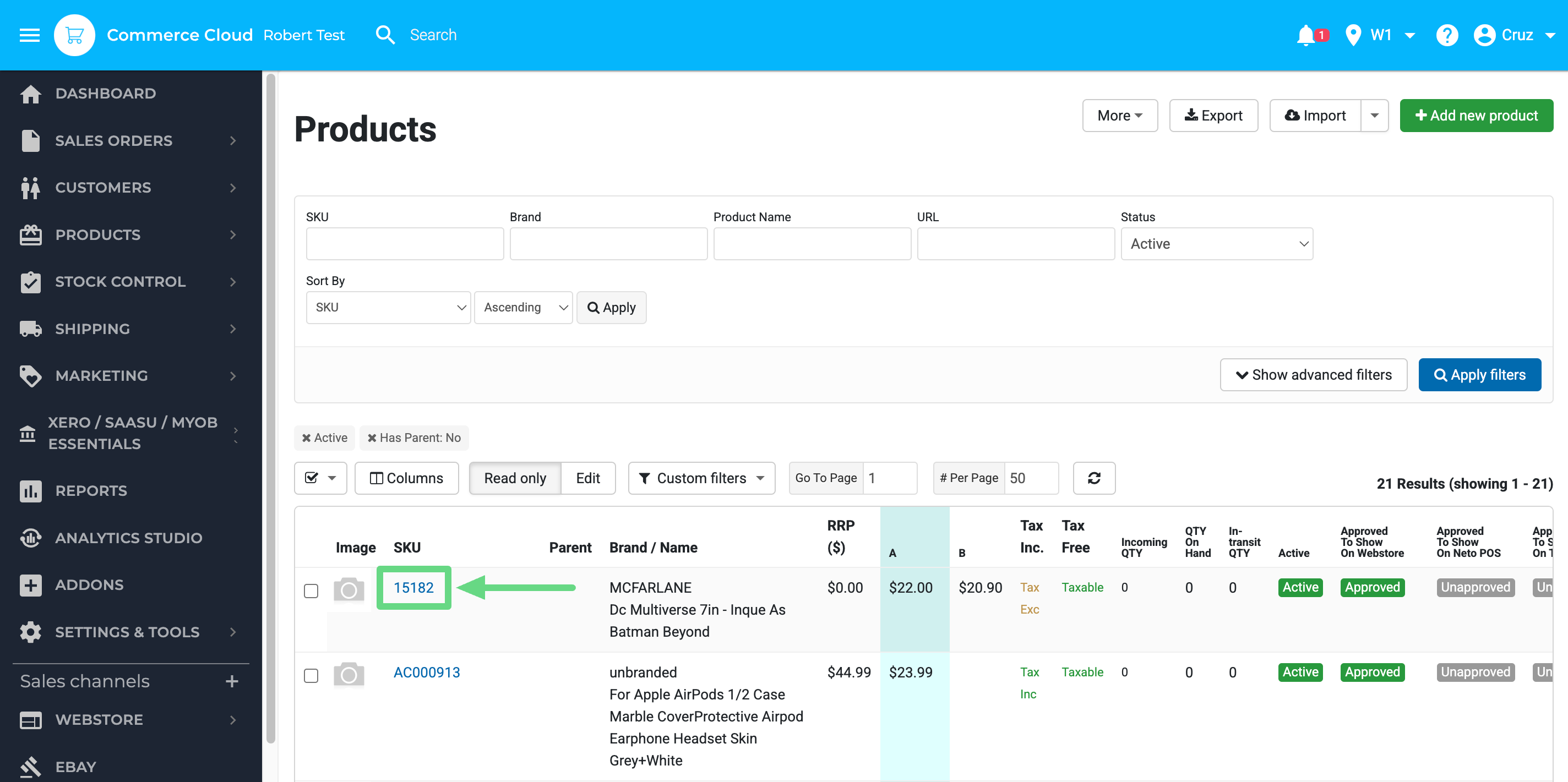
- Open the product by clicking on its SKU that you wish to list and sync with TouchCart.
- Select the "Approved to show on TouchCart" checkbox.
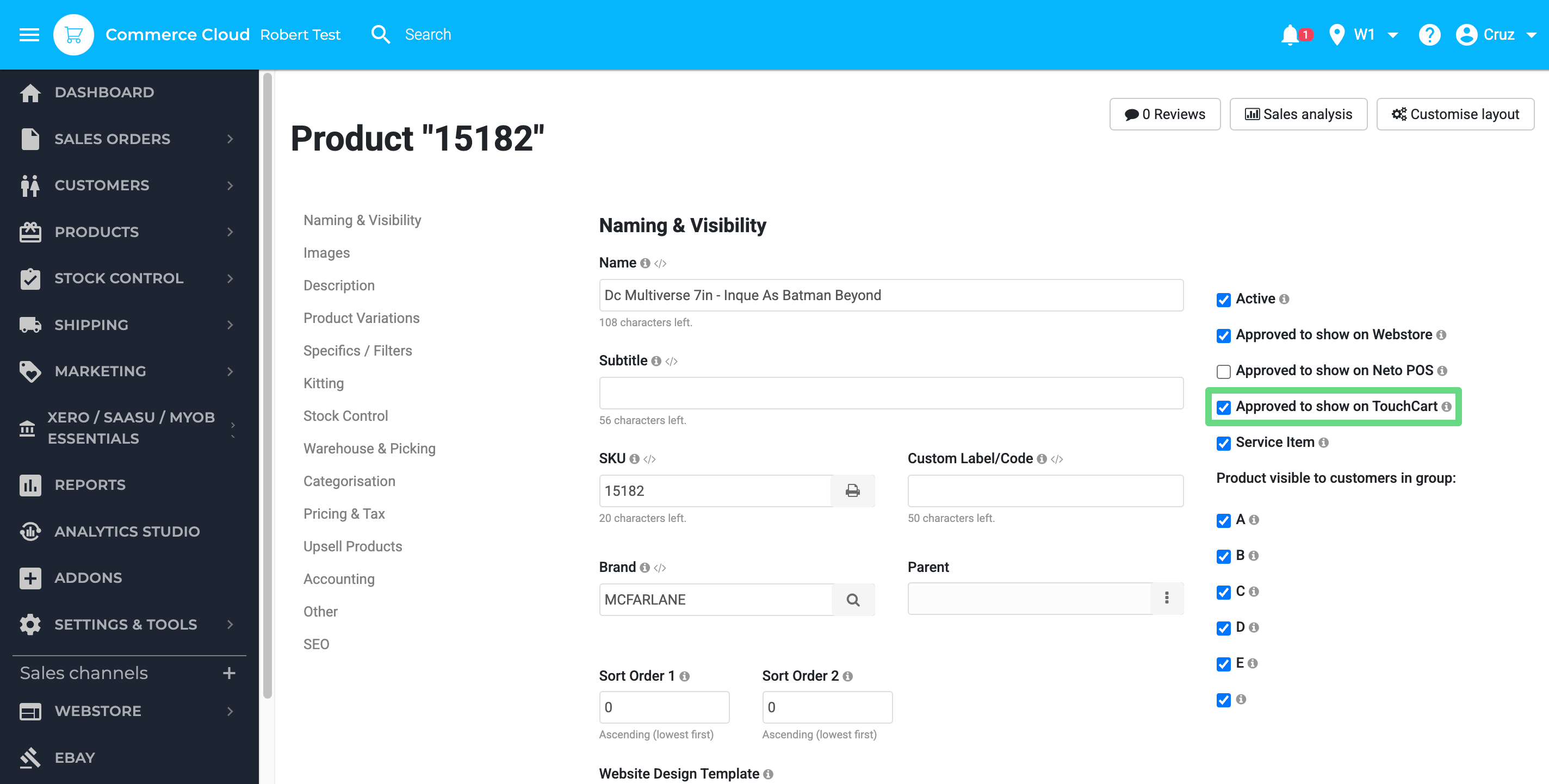
- Save your changes by clicking the Save button.
Follow these steps for every product you want to approve. Once completed, the products will automatically sync with TouchCart and become available on your mobile app.
Approve Products in Bulk
- Access Products >> Active from your Neto control panel.
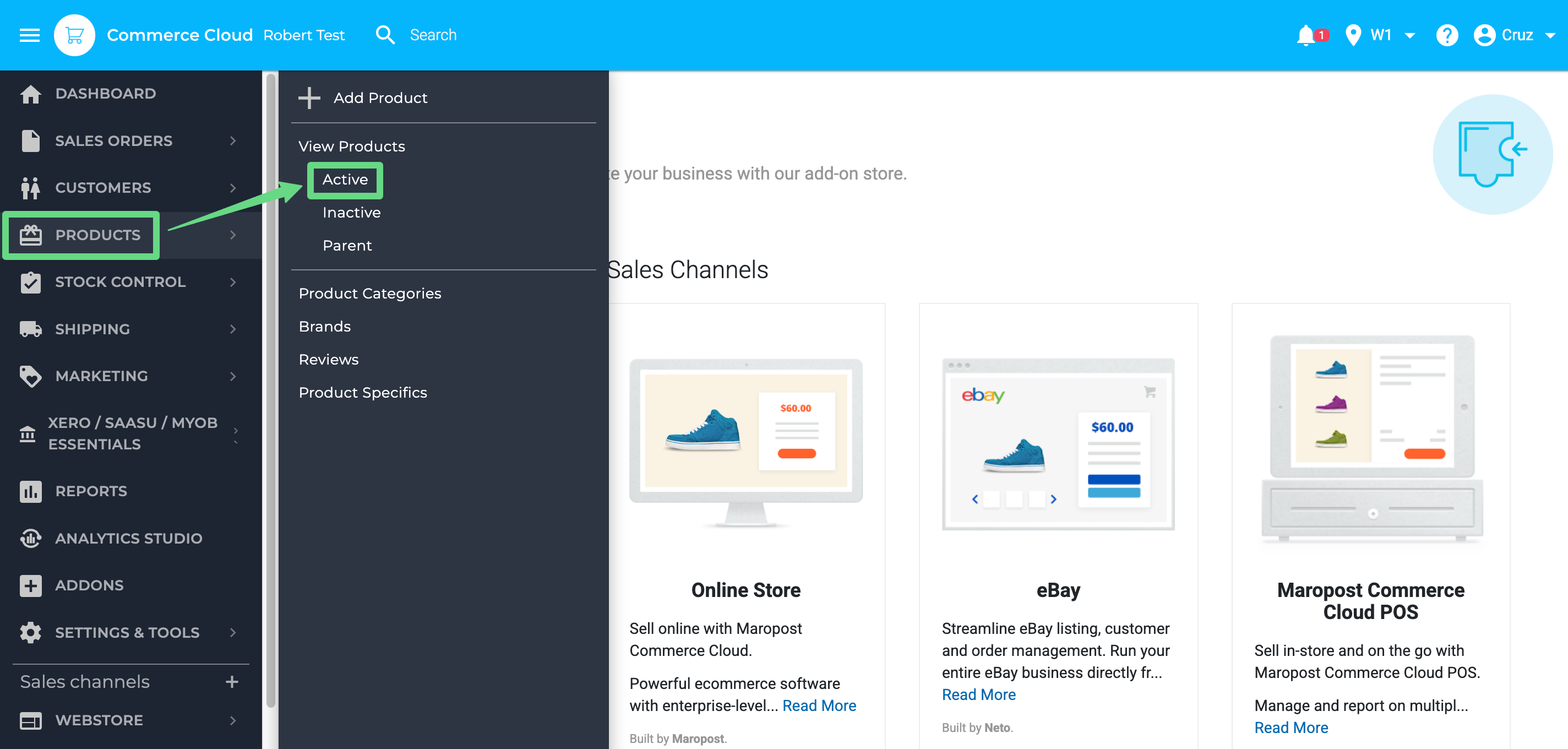
- Mark the target products for TouchCart approval by selecting their respective checkboxes.
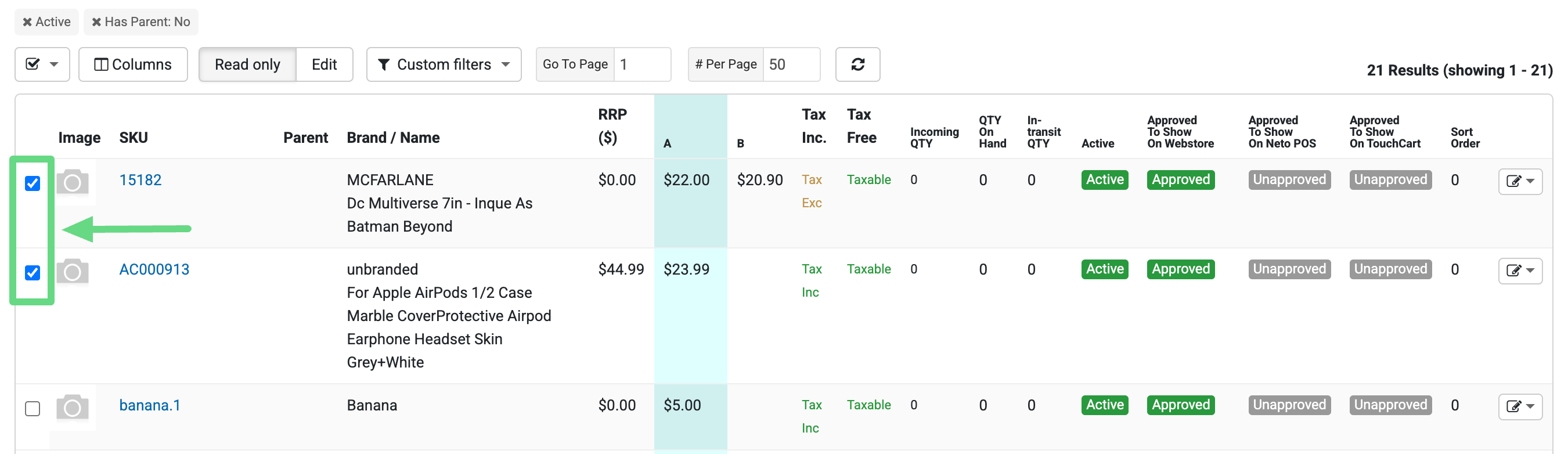
- Access the "With x Selected" dropdown menu (located below the product listing) and choose "Approve for TouchCart".
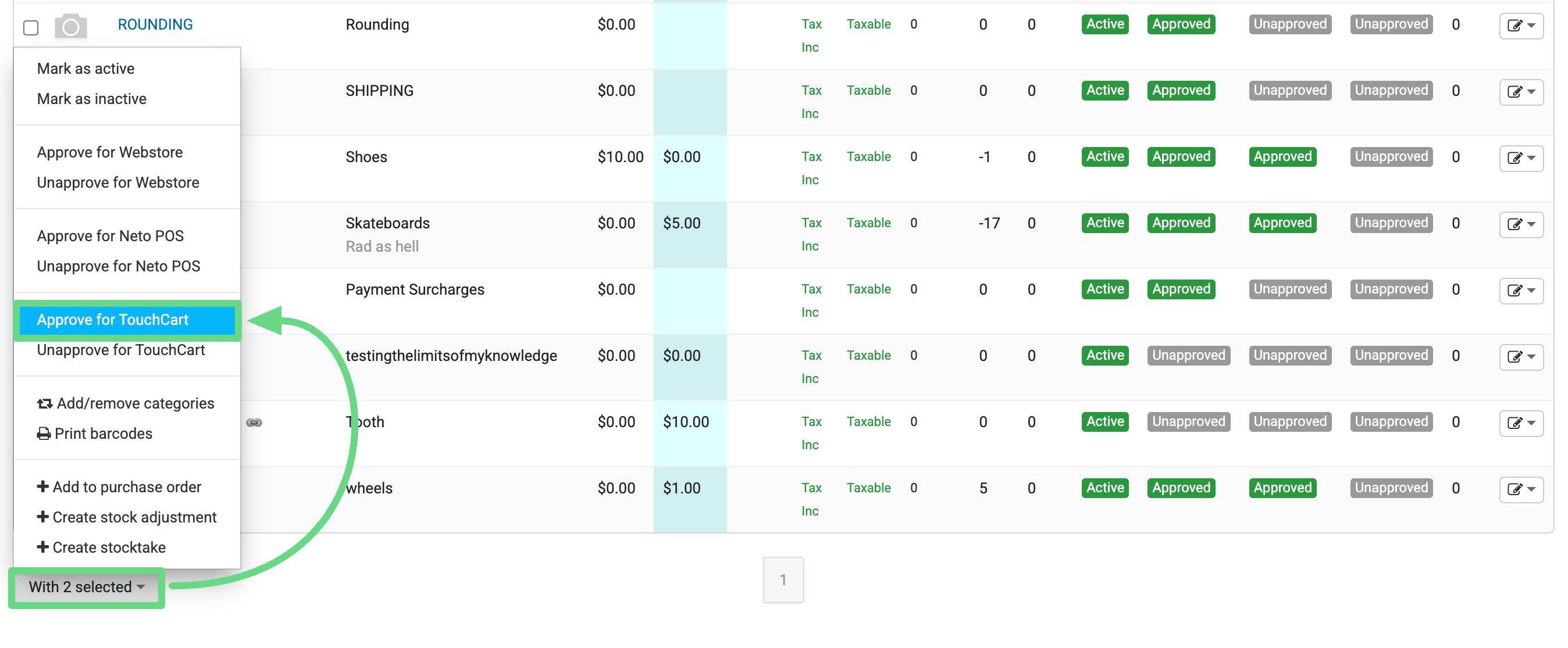
- Confirm the action by selecting OK in the verification dialog.
 Repeat this workflow for additional product batches as needed.
Approve Products via Import
First, export the products you want to approve for TouchCart using the export wizard.
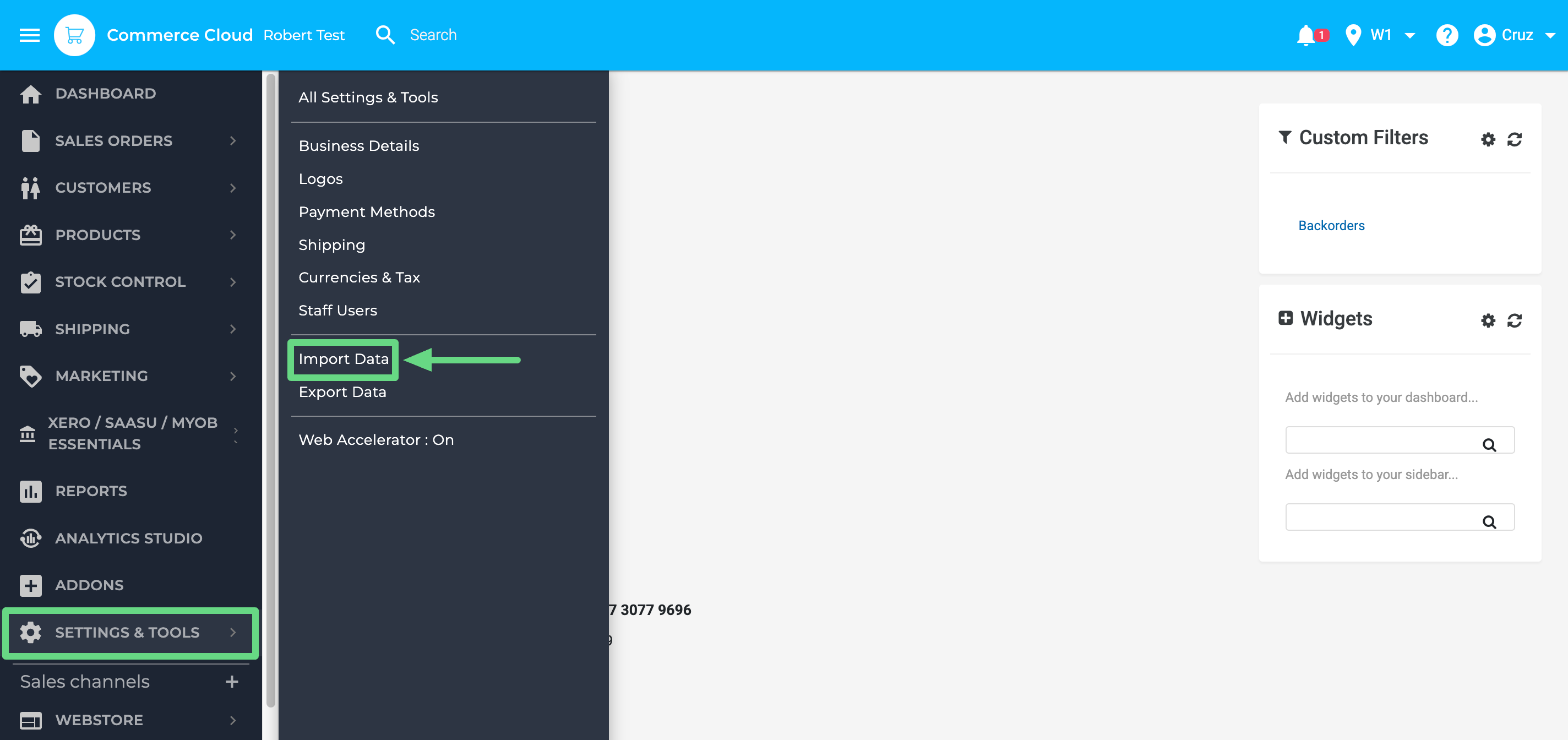
- Navigate to Settings & Tools >> Import data from your Neto control panel.
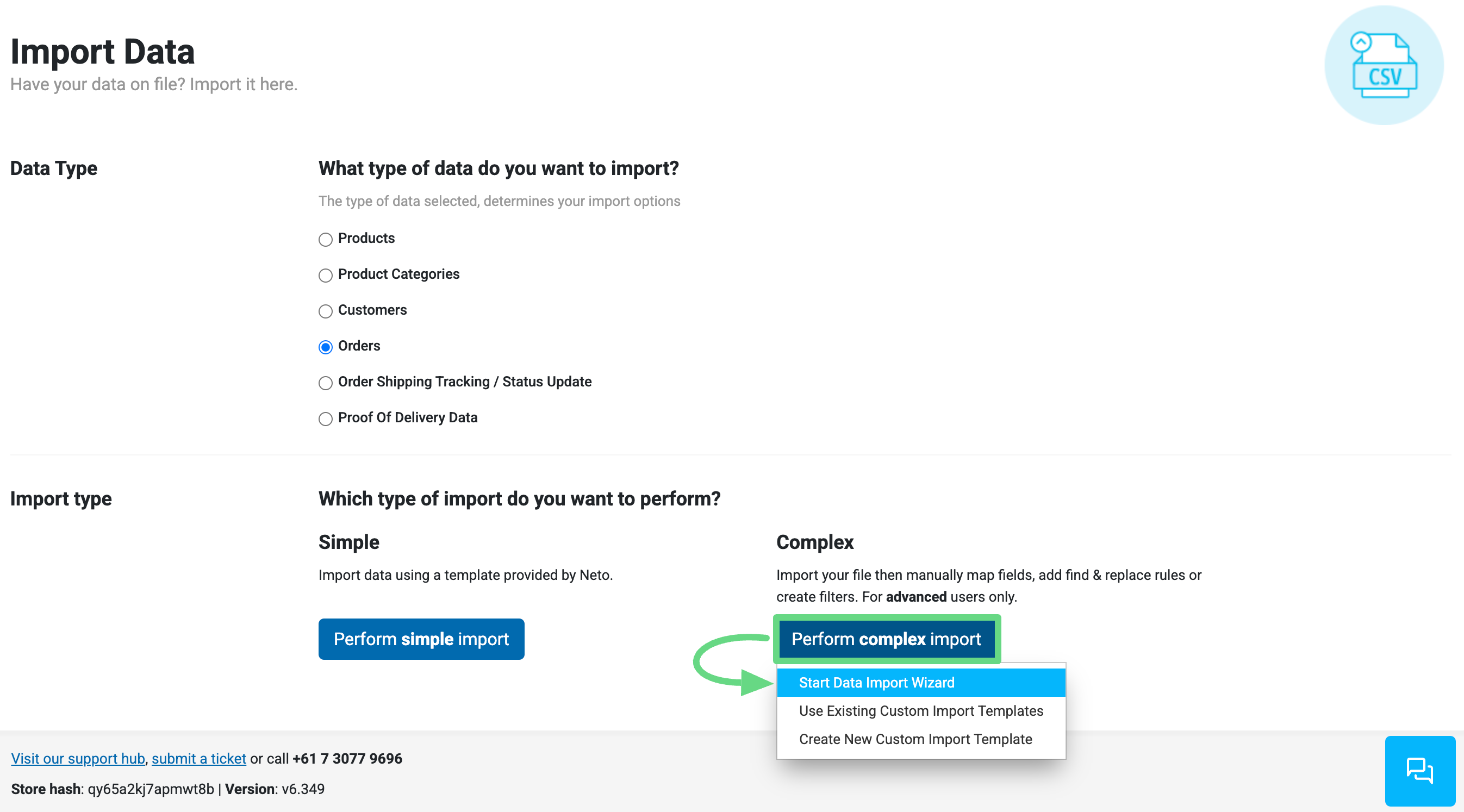
- Click "Perform complex import" and select "Start Data Import Wizard" from the dropdown menu.
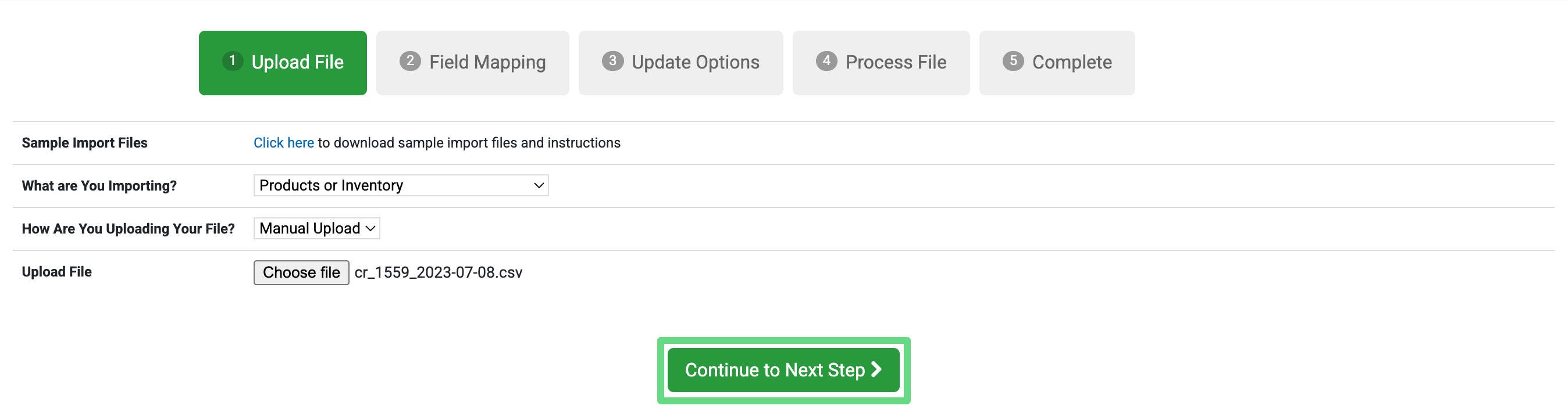
- On the Upload File page, click Browse to locate and select your import file. Proceed by clicking "Continue to Next Step".
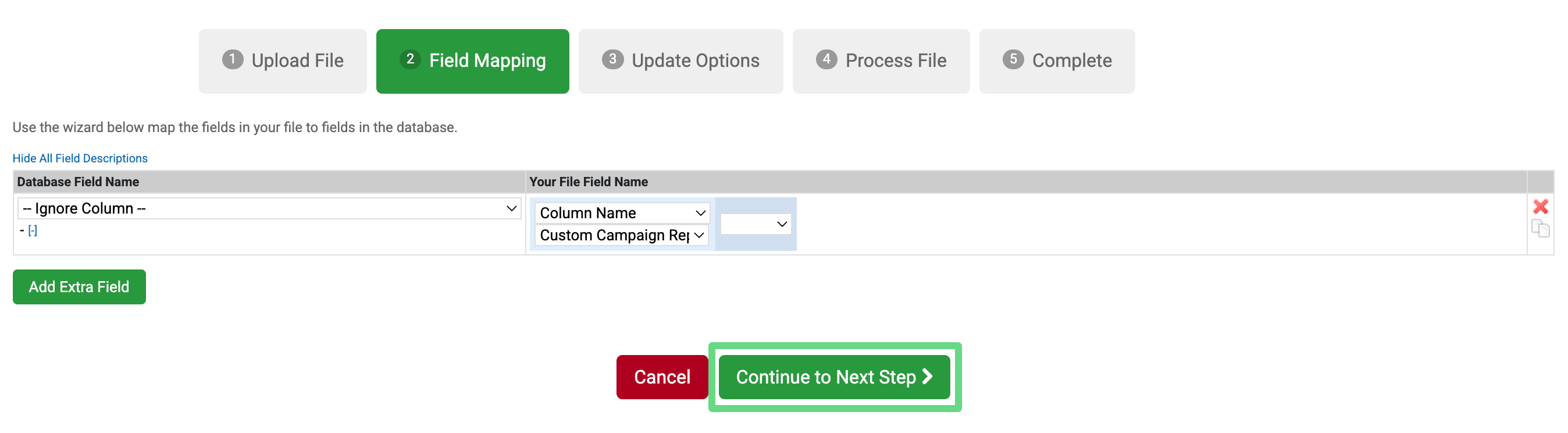
- Map the "SKU*" field in the Database Field Name parameter.
Tip:Remove extraneous field mappings to prevent unintended data overwrites and optimize import processing time. - Click "Add Extra Field" to append an additional mapping.
- Select “Approved For TouchCart” from the Database Field Name selector.
- Configure the Column Name dropdown to “Static Value”. An input field will appear below.
- Enter "Y" in the static value field.
- Click "Continue to Next Step" to proceed.
- Select "Update Existing Products Only" from the database update mode dropdown. Advance by clicking "Continue to Next Step".

- Initiate the import by clicking "Process File Now".
 The Neto system will begin processing the import and updating all specified product SKUs with TouchCart approval status. Allow approximately 10 minutes for completion, depending on the volume of products in your import batch.
Products have been successfully configured for TouchCart listing and synchronization.
Create Product Export Templates
In addition to product data synchronization through the Neto API, TouchCart implements auxiliary export templates to execute incremental synchronization operations, ensuring real-time data consistency between the Neto platform and the TouchCart mobile application.
These export templates contain account-specific configuration parameters unique to your TouchCart account. Export template operations must be performed post-onboarding. Contact TouchCart technical support for implementation assistance or configuration inquiries.
Process TouchCart Sales Orders
Sales orders transmitted from TouchCart to the Neto platform follow standard order processing workflows identical to those of other sales channels. Refer to the order fulfillment documentation for detailed procedures on order picking, packing, and dispatch operations.
End a TouchCart Product Sync
To remove products from TouchCart synchronization, revoke product approval status within Neto. Product synchronization can be terminated using three distinct methods:
- Individual Product Termination: Navigate to Products >> Active. Access the product detail page by selecting the relevant SKU, then deselect the "Approved to show on TouchCart" attribute.
- Bulk Product Termination: Navigate to Products >> Active. Select target products using the corresponding checkboxes, then execute the "Unapprove for TouchCart" action from the "With x Selected" dropdown menu located at the base of the product list.
- Import-Based Termination: Execute a product import operation with the "Approved For TouchCart" column value set to "N".
Uninstall the TouchCart Add-on
Important: Account closure must be completed with TouchCart before initiating the uninstallation sequence. Contact TouchCart support for account termination procedures.
To uninstall the TouchCart add-on:
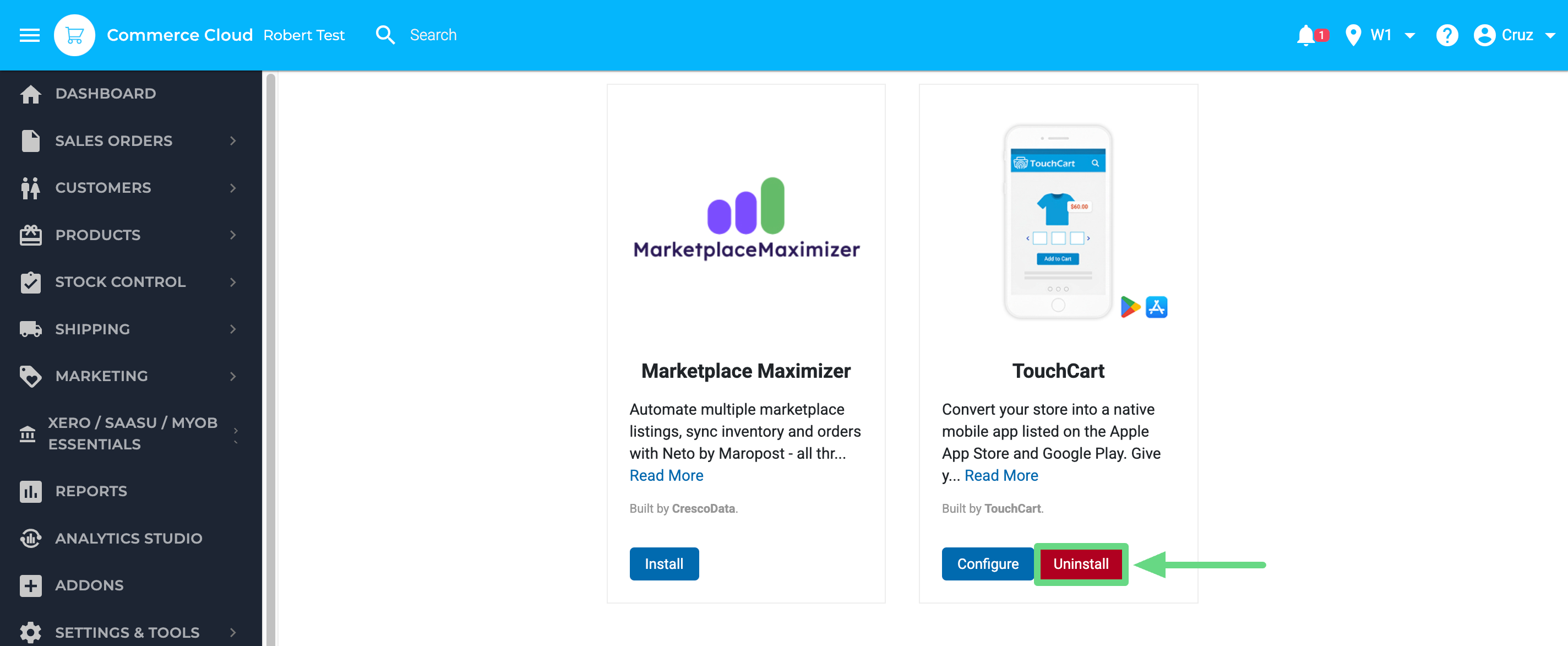
- Access the Addons page within your Neto control panel. Locate the TouchCart add-on within the Sales Channels section and select the Uninstall option.
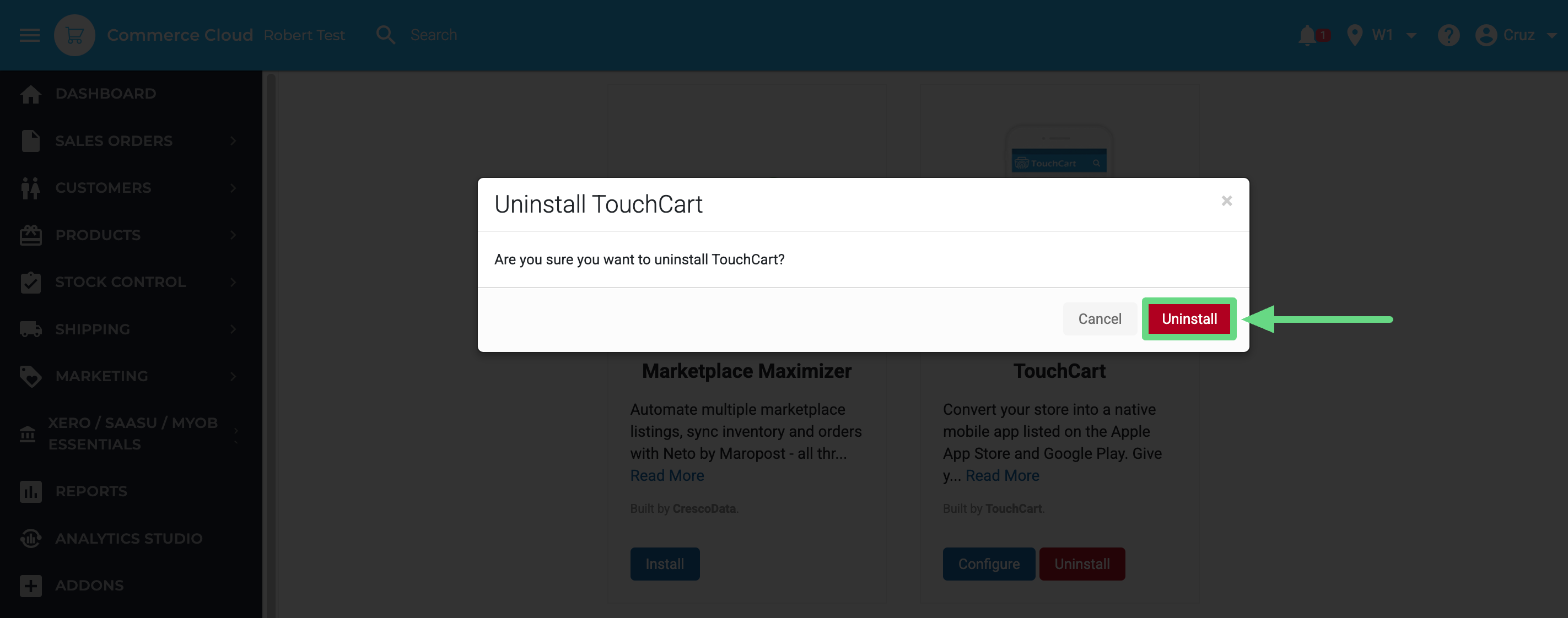
- Confirm the uninstallation action when prompted.
 The TouchCart add-on has been successfully removed from your Neto control panel upon completion of these steps.