Your returns settings let customers know the terms for returning purchases they've made. If you're using Business Policies, set your returns on the Payment, Shipping & Returns. Otherwise, returns are set on the Payment & Returns tab.
Set up Returns Settings in Neto
eBay doesn't allow return settings to be changed through the integration if the listing has bids or sales. If you need to change the returns setting for a listing log in to your eBay account and change it manually.
To set the returns settings for your listings in Neto:
- In your Neto control panel, navigate to eBay > Listing Rules Templates and open the template you're working on.
- Click on the Payment & Returns tab.
- Select a Listing Returns Policy. We recommend returns accepted.
- Select a duration from the Item must be returned within drop-down menu. We recommend 39 days.
- Leave the Refund will be given as blank.
- Select an option from the Return shipping will be paid by drop-down menu. We recommend setting it to the buyer.
- Select a Sales Tax Jurisdiction if it applies to you (e.g. eBay US accounts).
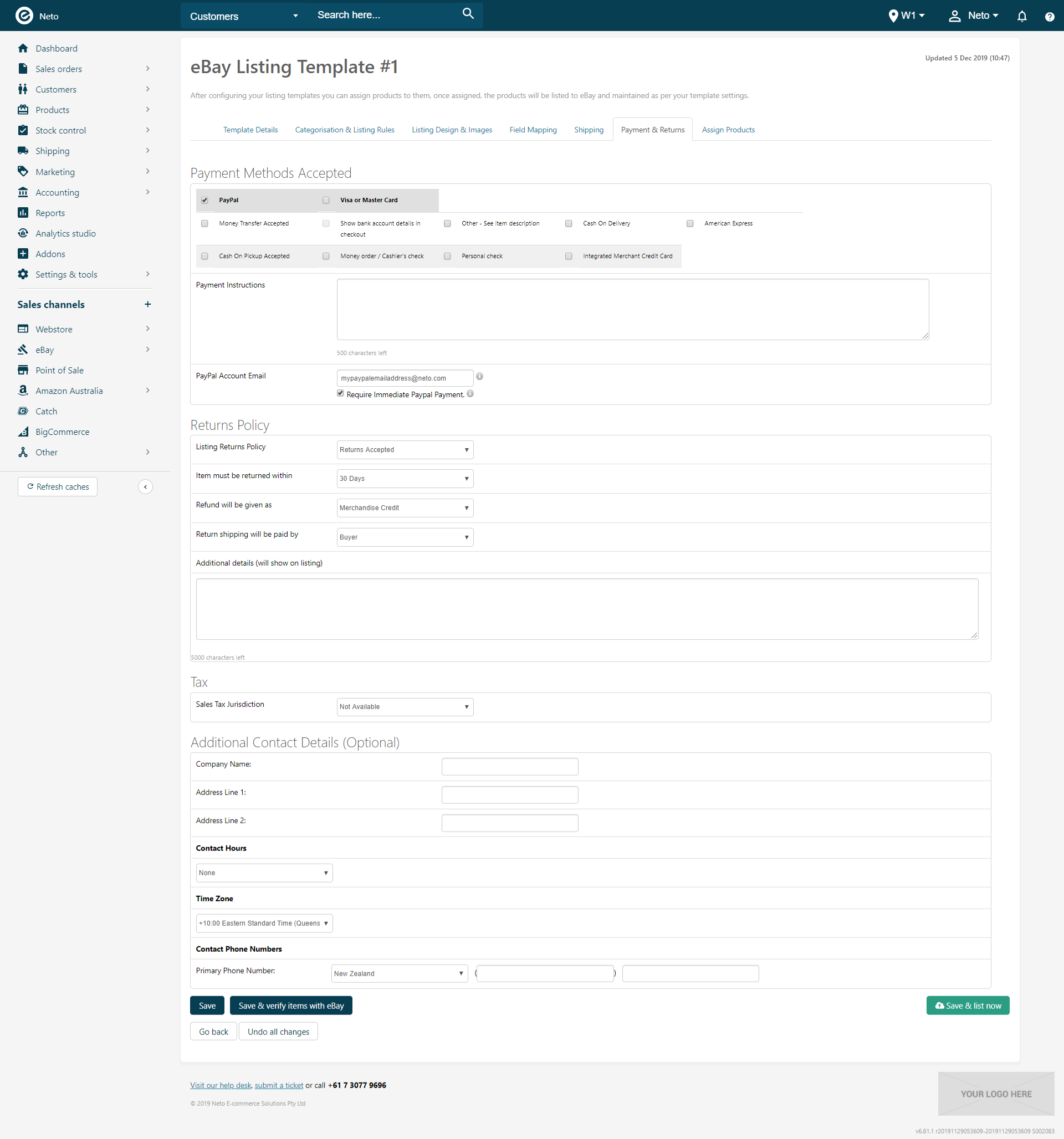
- Click the Save template button.
Set up Returns via eBay Business Policies
To set your returns settings from your eBay business policies:
Create your business policies in your eBay account before starting this step.
- In your Neto control panel, navigate to eBay > Listing Rules Templates and open the template you're working on.
- Click on the Payment, Shipping & Returns tab.
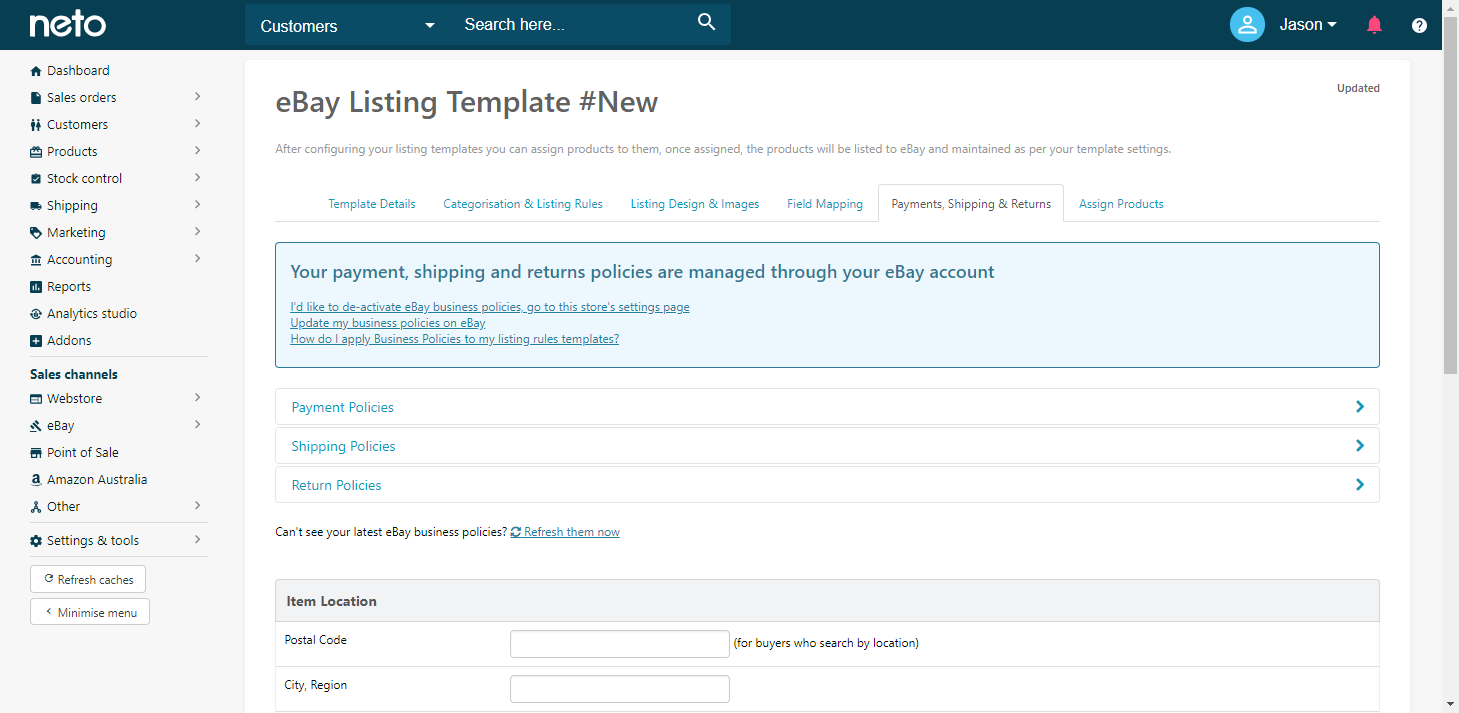
- Click the Return Policies link to see the returns policies from your eBay account.
- Select a returns policy using the radio buttons.
- Click the Save template button.