You can create Edit Profile pages to enable subscribers to update their contact information directly, which helps maintain accurate subscriber data while reducing unsubscribe rates. This self-service approach typically performs better than static profile management, as it allows subscribers to keep their information current rather than having to unsubscribe when their details change.
Edit Profile functionality significantly improves data quality and subscriber retention by empowering users to manage their own information. When properly implemented, this feature helps optimize engagement rates by ensuring your campaigns reach subscribers with current, accurate contact details.
With the help of Edit Profile, users can make changes to their profile details. The template contains both default and custom fields, for which the Add to edit profile page setting is set to "Yes."
The sample below is an Edit Profile page created using the Preference Management tool:

Creating an Edit Profile page
Perform the steps as shown below to create an Edit Profile Page:
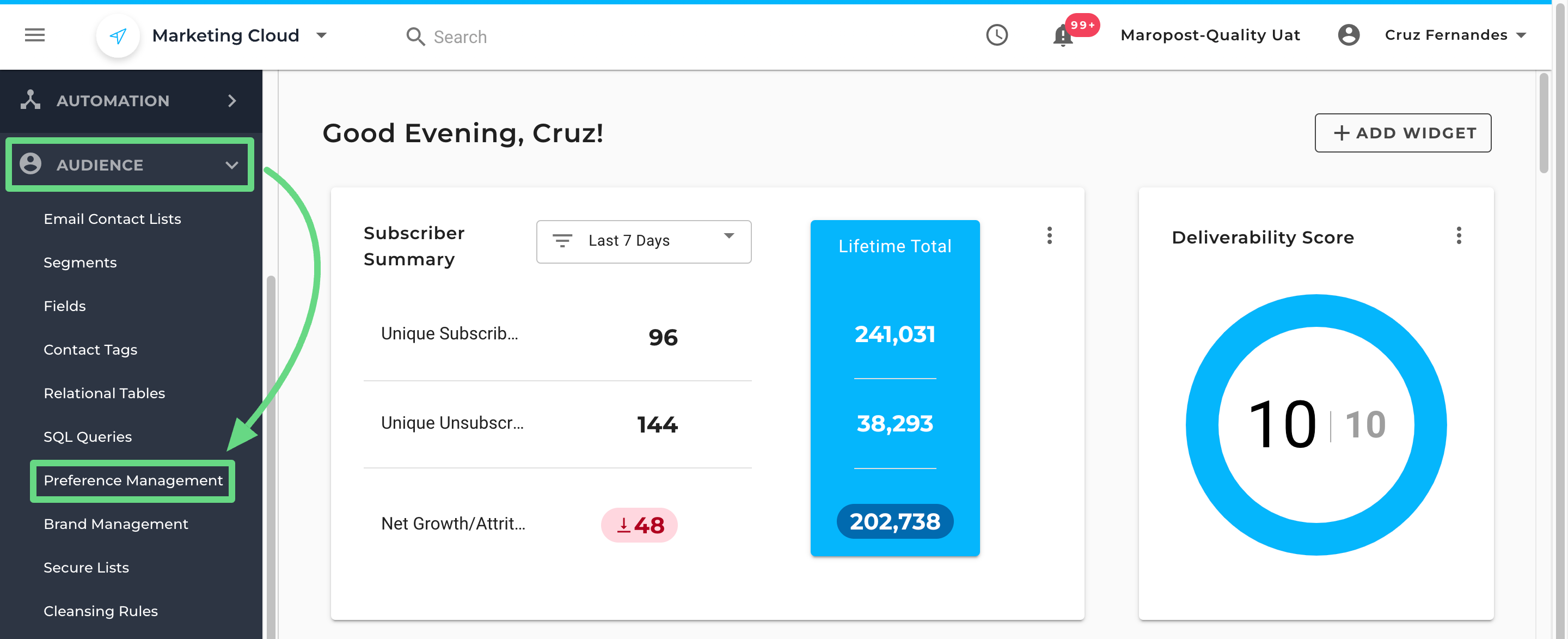
- From the Navigation panel, go to Audience and choose the Preference Management module.
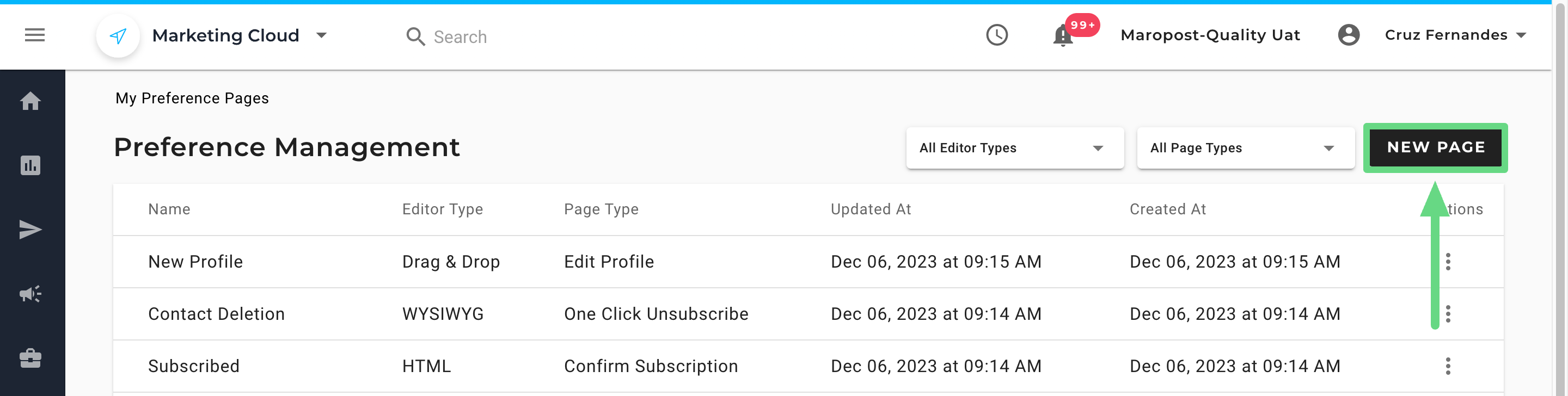
- To create an Edit Profile page, click on the New Page tab.
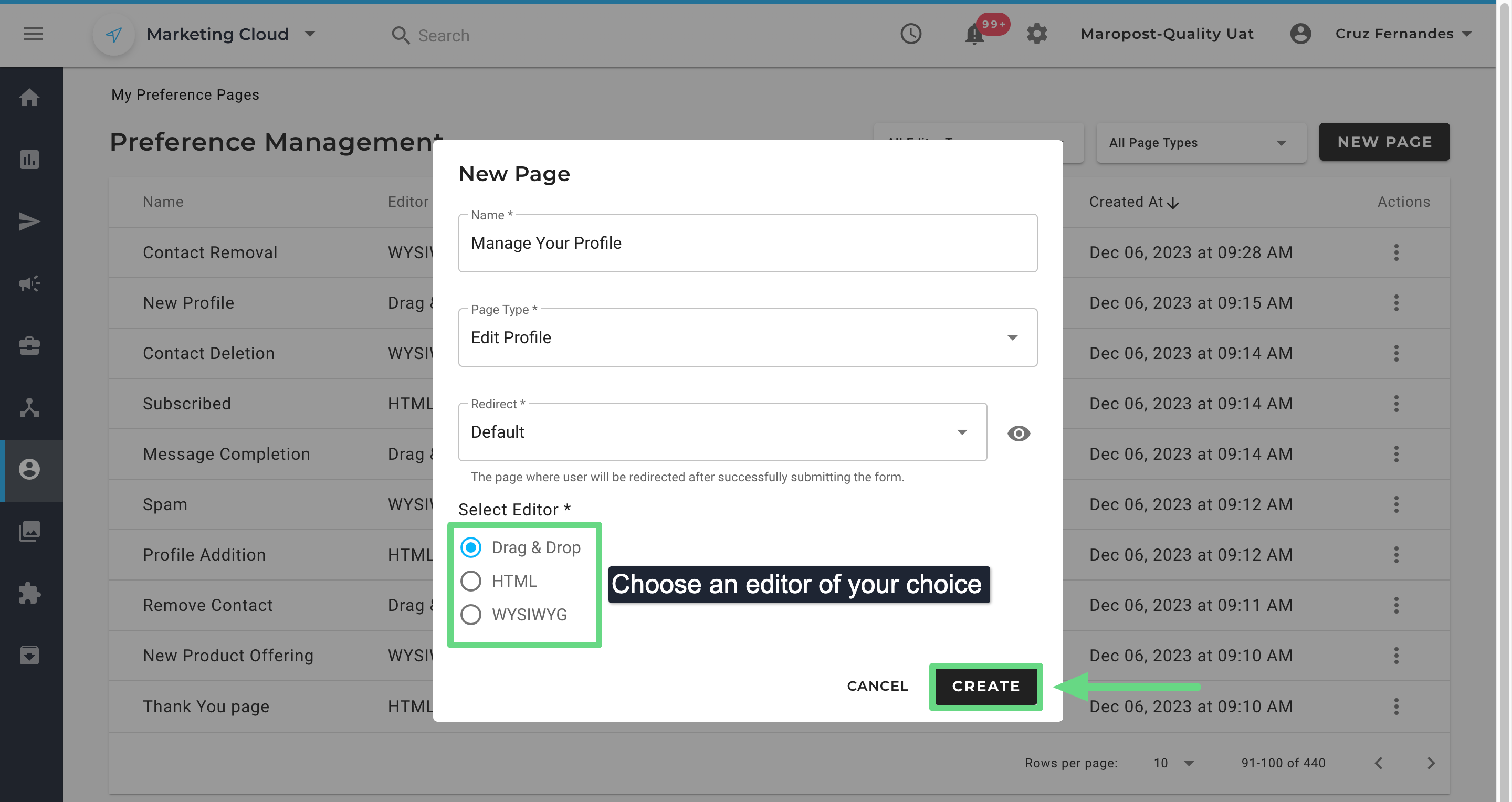
- The following details have to be entered and selected from the modal window:
Name: Enter a name for your preference page.
Page Type: Select the page type as “Edit Profile.”
Redirect: Choose a confirmation page or a thank you page for your contacts to be redirected to once they have edited their profile in the given email. By default, Marketing Cloud's Thank You page is selected. To learn about creating the Thank You page, see Preference Management: Thank You Page.
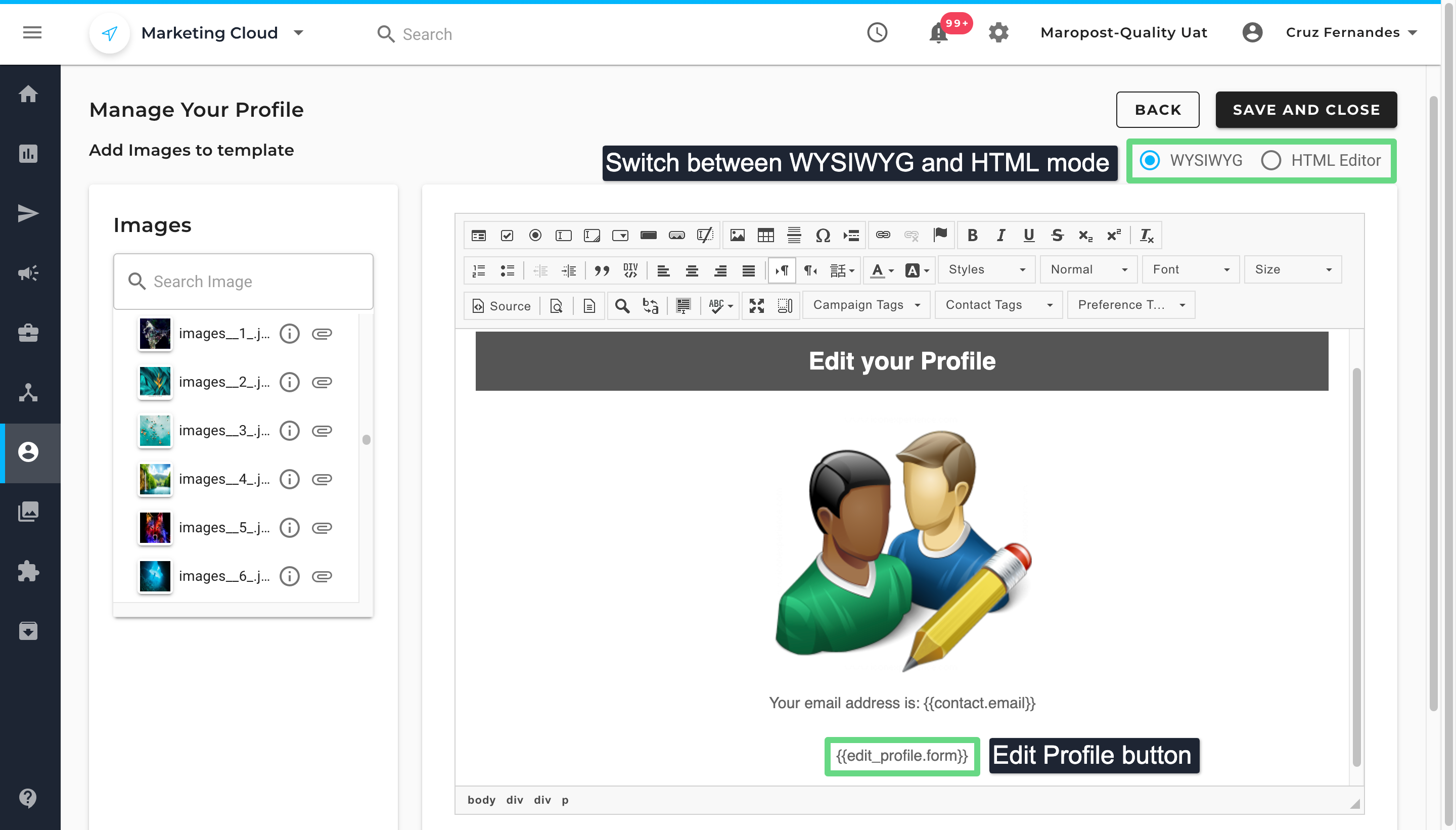
Select Editor: Choose an editing mode where you will design your layout. Marketing Cloud provides three format modes for designing your pages: Drag & Drop, HTML, and WYSIWYG.
Once you have entered the details, click on Create to proceed ahead.
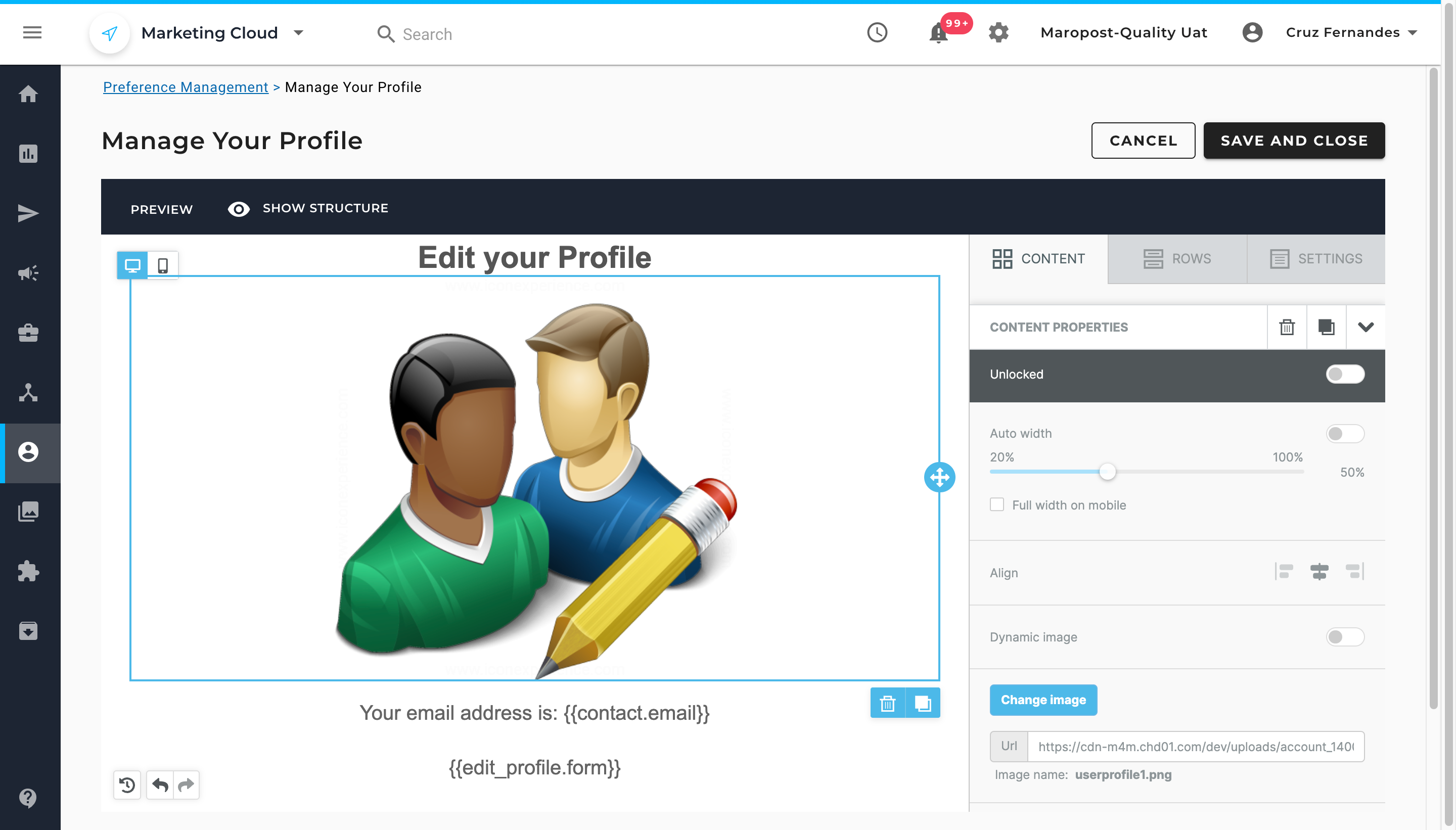
- In the case of the Drag & Drop editor, design the edit profile layout by using the customizable tools available in the given workspace.
- If you have chosen either the WYSIWYG or HTML option, use the format and editor tools or add your own source code to make the profile page more informative to your users. Make sure you add the {{edit_profile.form}} tag on your page to create a confirmation button for your contacts to click on. Once you have finished designing your page, save it.
Using an Edit Profile Page
When creating a custom footer (see Footer Management), you can select the Edit Profile Page you have made using the Preference Management tool.
