Use this guide to set up your Partner Portal login for the first time.
The setup takes you through six steps: opening your setup email, verifying your email address, connecting an authenticator app, entering the verification code, creating your password, and signing in.
Before you begin, make sure you have access to the email address linked to your Partner Portal account and a mobile device where you can install an authenticator app.
Step 1: Open Your Setup Email
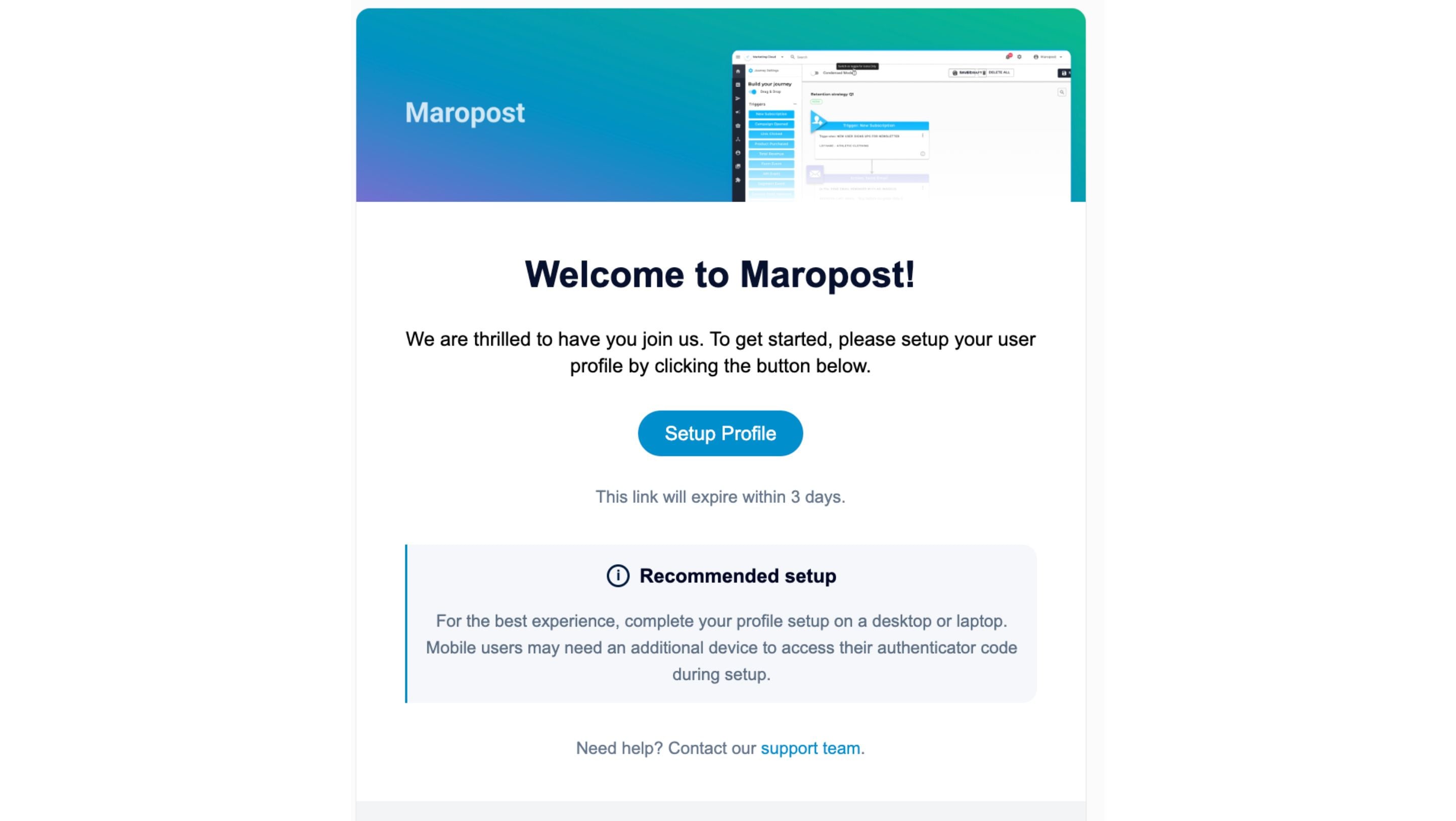
To set up your Partner Portal account, you should have received an email from Maropost at your registered email address.
- Open the email and click Setup Profile.
- The setup link is valid for 3 days, so complete your account setup before the link expires.
Step 2: Verify Your Email
Once you click Setup Profile, you will be taken to the email verification page.
Click Verify Email to confirm your registered email address and continue setting up your Partner Portal login.

After your email is verified, you will be taken to the authentication setup.
Step 3: Set Up Your Authenticator App
Once your email is verified, you will be taken to the Two-Factor Authentication (2FA) setup page. Two-Factor Authentication adds an extra layer of security to your Partner Portal account.
You can use any of the following authenticator apps:
- Google Authenticator
- Microsoft Authenticator
- Authy
Install one of these apps on your mobile device and open it.
From the authenticator app, add a new account and scan the QR code displayed on the Partner Portal setup screen.

Once the account is added successfully to your authenticator app, click Continue.
Step 4: Enter the Verification Code
After connecting your authenticator app, it will generate a 6-digit verification code.
- Enter the current code on the Partner Portal screen.

- Click Submit to continue.
The code changes regularly, so if the code expires before you submit it, use the new code shown in your authenticator app.
Step 5: Create Your Password
Next, create the password you will use to sign in to the Partner Portal.

Your password must contain at least:
- 8 characters
- One uppercase letter
- One lowercase letter
- One number
- One special character
Enter your password in the New Password field, then enter it again in the Confirm Password field.
Once both passwords match and meet the requirements, submit your password to complete the setup.
Step 6: Sign In
Your Partner Portal login is now ready.
Go to: https://partners.maropost.com
Sign in using:
- Your email address
- The password you created during setup
- The 6-digit code from your authenticator app
Enter the verification code when prompted to complete the sign-in process.
Once your details are accepted, you will be signed in to the Partner Portal.