The Tax Settings section allows you to configure default tax behaviour for your store using Custom Taxes. These settings define how tax rates are applied during checkout and act as a fallback mechanism when automated tax providers, such as Stripe Tax, are unavailable.
Custom Taxes ensure that checkout can continue smoothly by applying predefined tax rules when required.
To access Tax Settings
Go to Settings > Taxes.

Custom Taxes Overview
When you open the Taxes page, the Custom Taxes tab is selected by default. This section is divided into two main areas:
- Tax Rates – where you define country- and state-specific tax rules

- Tax Calculation Settings – where you control how taxes are calculated at checkout

Tax Rates
The Tax Rates section displays all custom tax rates configured in your store. Each entry includes:
- Country
- State
- Tax Code
- Tax Rate
- Attribute
- Overrides
- Actions (edit or delete)
Adding a New Tax Rate
To create a new tax rate:
- Click New Tax Rate

- Select the Country
- Select the State
- Enter the Default Tax Rate
- Enter a Default Tax Code

- Under Tax Configuration, choose the applicable override level:
- Collection-level overrides
- Product-level overrides
- Tag-level overrides
- Click Save
Once saved, a notification appears confirming that the tax rate was created successfully.
The new tax rate is immediately added and becomes available for checkout calculations.

Tax Calculation Settings
This section controls how taxes are applied across the store.
Tax Provider
- Displays the active tax provider (for Custom Taxes, this is the System Tax Provider)
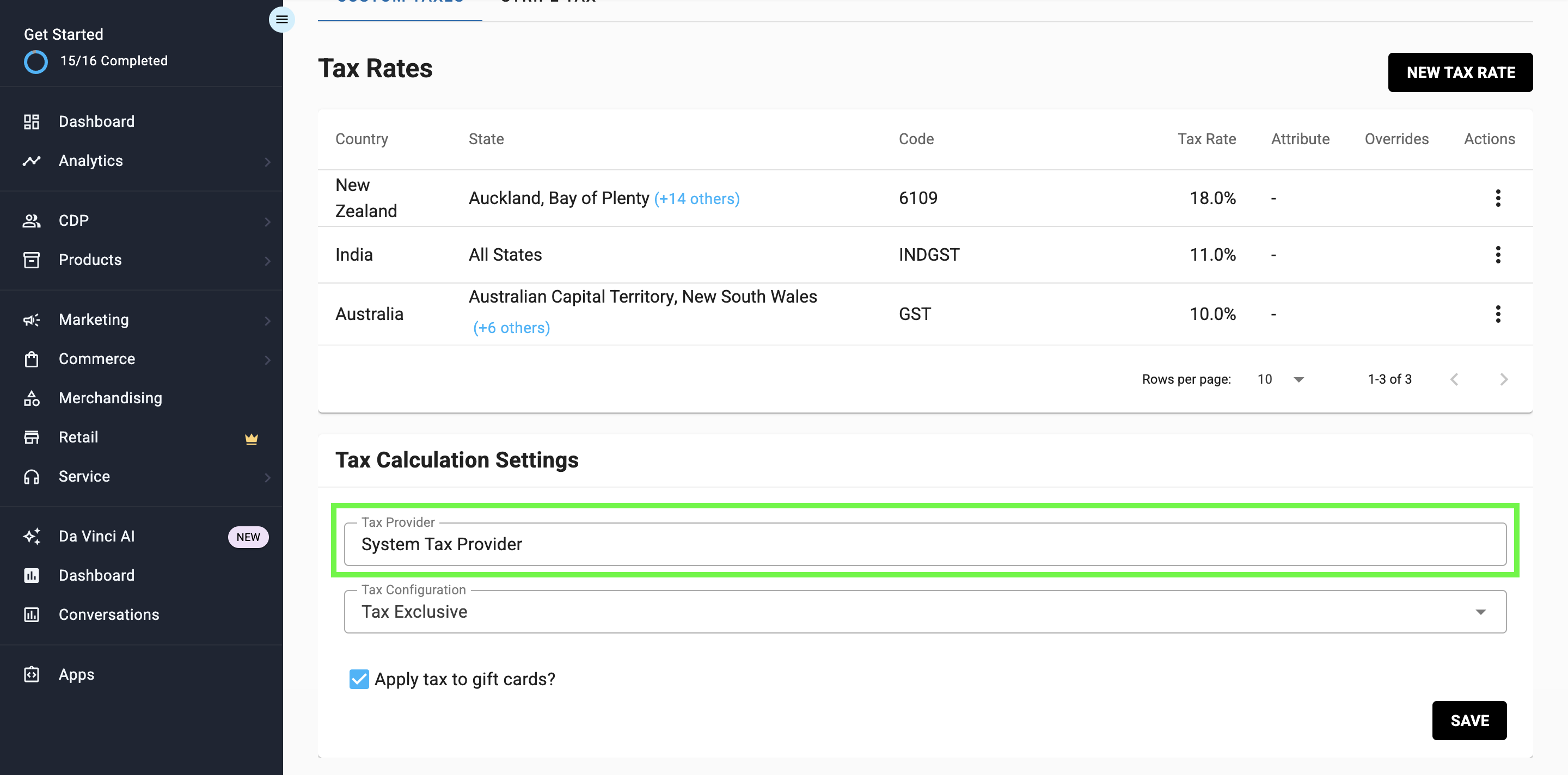
Tax Configuration
Choose how tax values are calculated:
- Tax Inclusive – product prices include tax
- Tax Exclusive – tax is added at checkout
- No Tax – disables tax calculation

Apply Tax to Gift Cards
- Enable this option if gift card purchases should be taxed

Click Save to apply any changes made in this section.

Custom Tax Logic
If Stripe Tax is enabled, Stripe calculates the tax.
If Stripe fails, we fall back to Custom Tax.
If Stripe is not enabled, Custom Tax becomes the main source.
If no rule matches → 0% tax is applied.
Tax Types
There are two types of custom tax rules in the system:
P0 – Attribute-Based Tax (Higher Priority)
Attribute-based tax rules apply to specific Products, Collections, or Tags within a state.
These rules allow you to define tax behaviour for particular product groups instead of applying a single tax rate across the entire state.
Example:
- In State CA, the standard tax rate is 8%.
- However, medical goods are tax-free.
- You can:
- Create a P1 rule for California at 8%.
- Create a P0 rule for products tagged "Medical" with a 0% tax rate.
At checkout:
- A regular product will be taxed at 8%.
- A product tagged as "Medical" will be taxed at 0%.
Because P0 rules are more specific, they override state-level rules.
Multiple P0 rules can exist within the same state.
P1 – State-Level Tax
State-level tax rules apply uniformly to all products in a specific state, unless a P0 rule overrides them.
These rules are used when no product-, collection-, or tag-specific tax logic is required.
Example:
- In State TX, all products are taxed at 6%.
- You can create a single P1 rule for Texas with a 6% tax rate.
- If no P0 rules exist for Texas, all products will be taxed at 6%.
Only one P1 record per state is allowed. Duplicate state-level records are rejected.
Priority Rule
Tax rules are applied in the following order:
- If a matching P0 rule exists → Apply P0
- Else if a P1 rule exists → Apply P1
- Else → Apply 0% tax
P0 rules always override P1 rules when both exist.
Creation Rules
- For state-only (P1) → only one record per state allowed. Duplicate = reject.
- For attribute-based (P0) → multiple records per state allowed.
- P0 and P1 can exist together.
Multi-state in a single tax record is not allowed.