After your sales channel setup is complete, clicking Explore Store takes you to the General Store Settings page. This is the central place where you configure your store’s identity, contact details, favicon, and address. These settings help ensure your storefront is properly branded, compliant, and ready for customer-facing communication.
Below is a detailed breakdown of everything you can configure on this page.
Store Overview
At the top of the page, you’ll see key store details. It displays your store’s most important details in a single view and allows quick access to your storefront URL and Merch Cloud account.
Below is a detailed breakdown of what you will see in the General section.
- Store Name
- Store Status (e.g., Published, Web Store Active)
- Country of Incorporation
- Store Join Date
- Store URL — Quick link to your live storefront
- Merch Cloud Account Link — Direct access to Merchandising Cloud for managing search, recommendations, and product discovery

These fields help you quickly confirm that your store is active and connected to the right Merchant Cloud account.
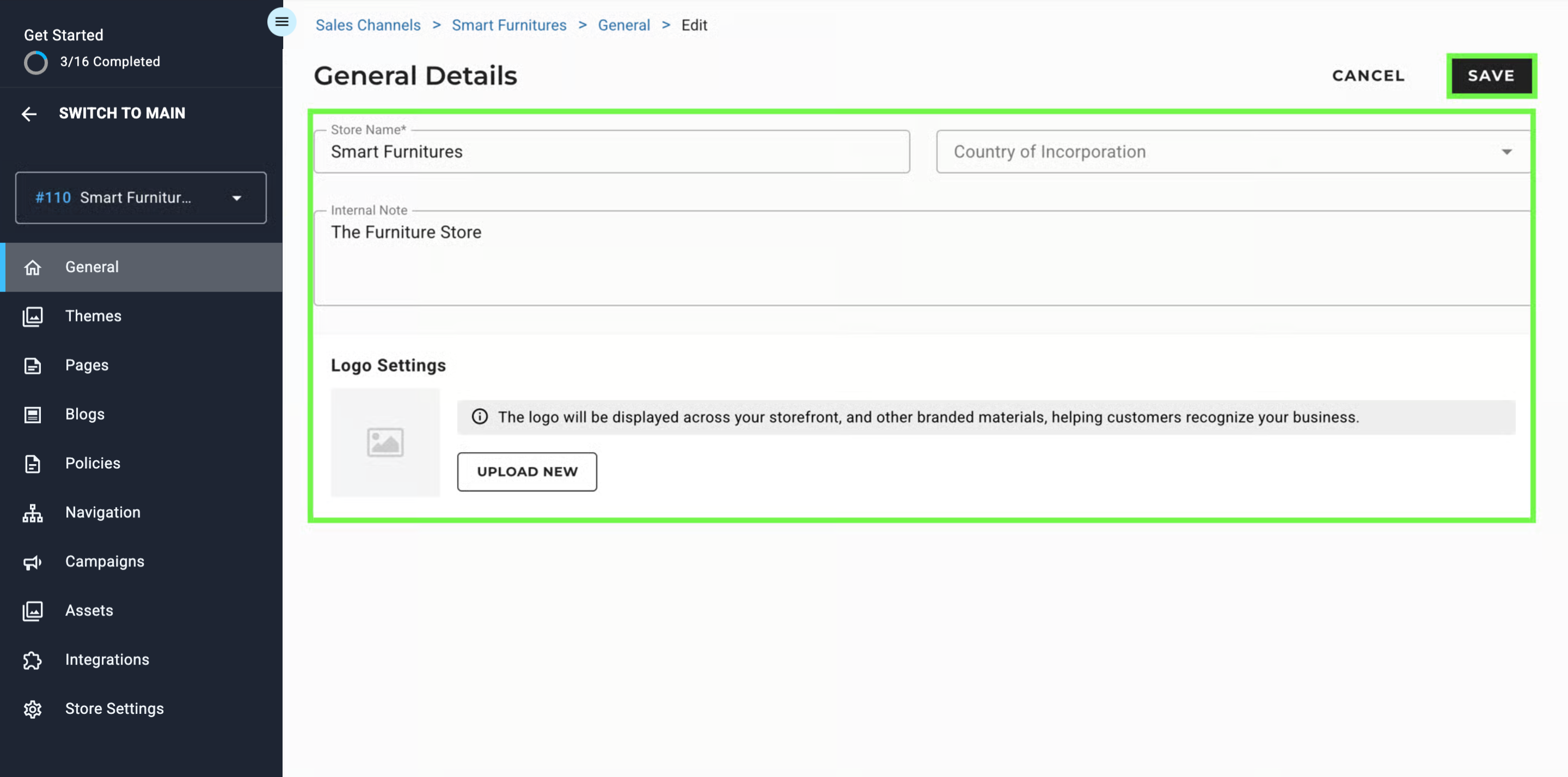
To Edit the details, click on the pencil icon at the top right corner of the page. On this page, you can edit the details about the store that includes:
- Store Name
- Country of Incorporation
- Internal Note
Directly below the editable fields, you will see Logo Settings.
Logo Upload
- Upload your store’s primary logo
- This logo appears across your storefront and branded materials
- Use a high-quality image for best results. We support maximum file size is 2MB and the expected extensions are: PNG, JPG, GIF, WebP.
Once all the information is verified/updated, click on Save to implement the changes.
Business Identity
The Business Identity section stores your official business information. These details are important for verification, legal compliance, communication, and financial operations.
This information can appear on invoices, emails, customer communication, and tax-related documents — so it’s important to ensure accuracy.
What You Can Configure
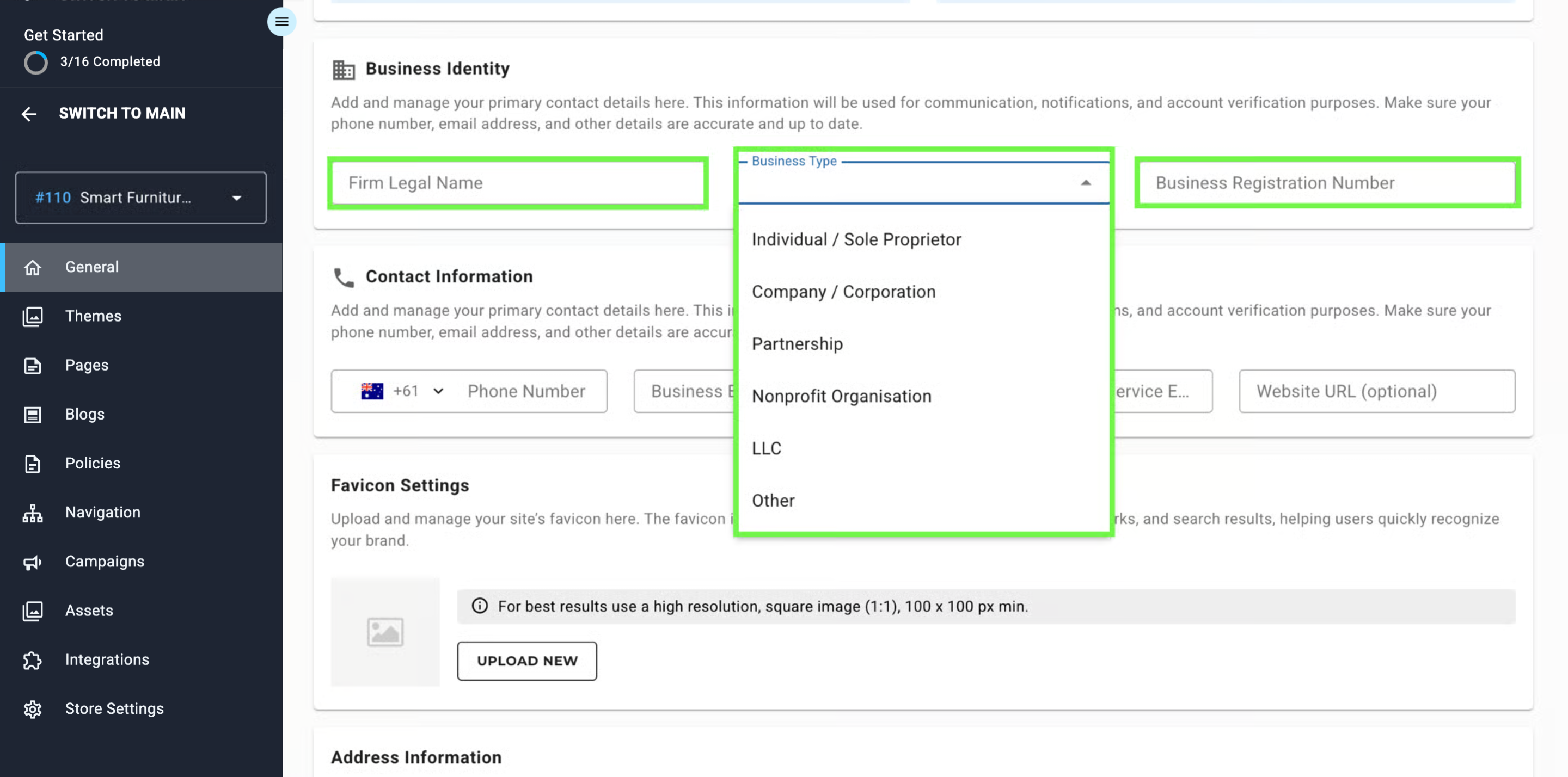
Firm Legal Name
Enter your legally registered business name.
Examples:
- Smart Furnitures Pvt. Ltd.
- Greenwood Interiors LLP
This name may appear on invoices and order confirmations, depending on your store configuration.
Business Type
Select the appropriate classification for your business from the dropdown. Options may include:
- Individual / Sole Proprietor – A business owned and operated by one person without formal incorporation.
- Company / Corporation – A legally incorporated entity (e.g., C-Corp or S-Corp) offering liability protection and structured governance.
- Partnership – A business owned by two or more individuals sharing responsibilities, profits, and liabilities.
- Nonprofit Organisation – A tax-exempt entity formed for charitable, educational, or public benefit purposes.
- LLC – A Limited Liability Company that combines liability protection with flexible tax and management options.
- Other – For business structures not covered above or unique state-specific classifications.Selecting the correct type ensures proper compliance and reporting.
Business Registration Number
Add your official business registration or tax identification number.
Depending on your region, this may be:
- Company Registration ID
- GSTIN / VAT Number
- ABN / EIN
- Local Business License Number
This helps validate your store and may be required for tax, payment, and invoicing operations.
Tip: If you manage multiple sales channels under one business, make sure the registration number is consistent across all channels.
Contact Information
The Contact Information section allows you to add and manage your store’s primary communication details. These details are used for customer notifications, support communication, and account verification.
Ensuring this information is accurate helps customers reach you easily and ensures your store’s system emails are properly delivered.
You can add or update:
- Phone Number (with country code)
- Public Business Email Address
- Support / Customer Service Email
- Website URL (optional link to your primary site)

These details appear in customer emails, invoices, order updates, and store communication templates.
Favicon Settings
The Favicon Settings section allows you to upload and manage the small icon that represents your store across browsers and search experiences.
The favicon helps users quickly recognize your brand when they have multiple tabs open, save your site as a bookmark, or view search results.
This section is especially important for brand visibility and professionalism, as the favicon appears in:
- Browser tabs
- Bookmarks and favorites
- Search engine results
- Mobile shortcuts

How to Upload Your Favicon
- Click Upload New to select an image from your device.
- Choose your image and click on Upload.
- After uploading the image, click on Save. Your favicon will automatically apply across your storefront once saved.
Recommended specifications: High-resolution 1:1 square image (100 × 100 px minimum). Maximum file size is 2MB and the expected extensions are: PNG, JPG, GIF, WebP.
Address Information
Use this section to add your store’s official address. This address may be used for billing, shipping, and communication purposes, so ensure all details are correct.
Store Official Address
Enter the primary location of your business.
Fields include:
- Street Name: Type in street name to search address from maps.
- Address 2 (optional)
- City
- State/Province/Region
- Zip/Postal Code
- Country
Proper address setup ensures accurate shipping rates, return workflows, and compliance with tax/shipping providers.

Use different shipping origin address
Enable this if your shipments are dispatched from a different location. A separate form will appear to enter that address.
Set up return address
Enable this to define a dedicated return location for customer returns.