Tags in Service Cloud enable you to label and categorize the tickets so that you can filter and track tickets based on these tags.
What are tags?
In Service Cloud, tags are words or phrases that can be used to label the tickets, thereby providing you with another way to categorize your tickets.
For instance, if there was a service disruption and you wanted to monitor the tickets coming in for the issue, you could simply create a tag and keep adding the tag to all the tickets on the issue.
So, whenever you want to find the tickets or track their progress, you can use the tag as a filtering option.
Creating and Managing Tags
You can create new tags and view and manage the previously created tags on the Tags page (User Profile >> Settings >> Tags). The Tags page shows all existing tags along with their information, such as tag name and dates on which the tag was created and last updated. You can use the Actions menu options to edit and delete the tag.
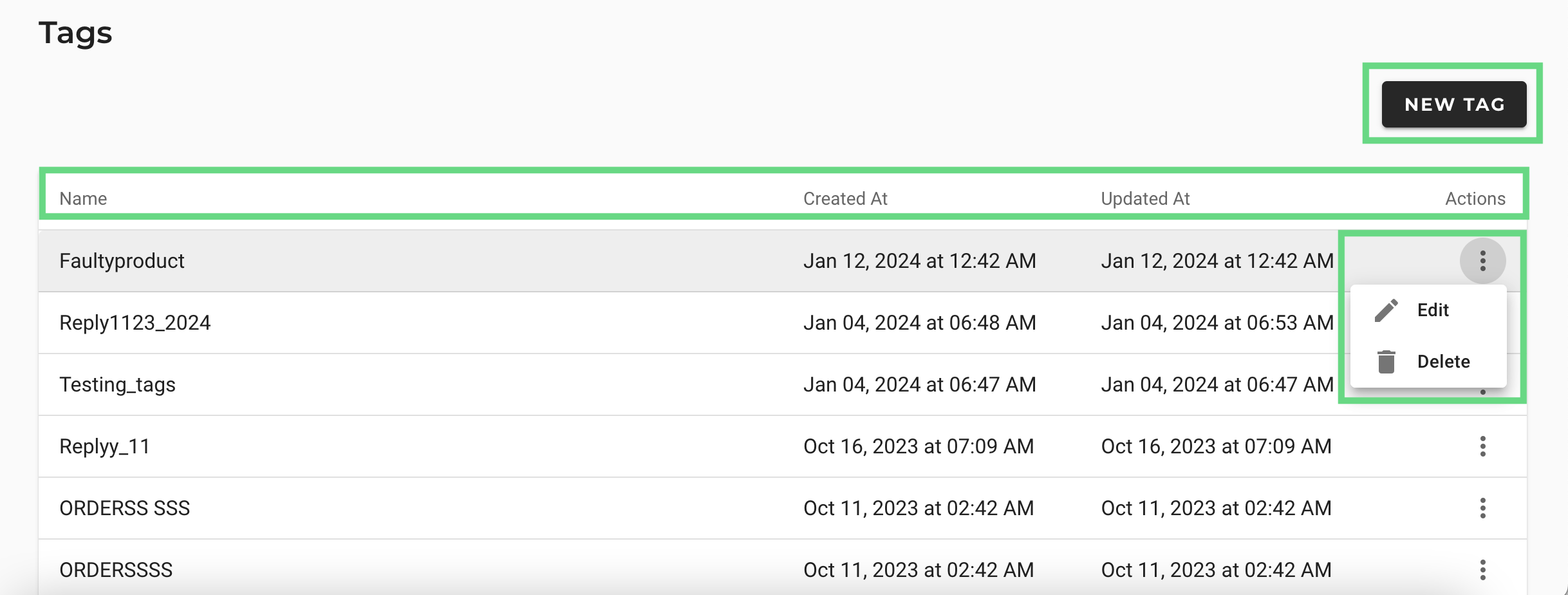
To create a new tag, follow the steps below:
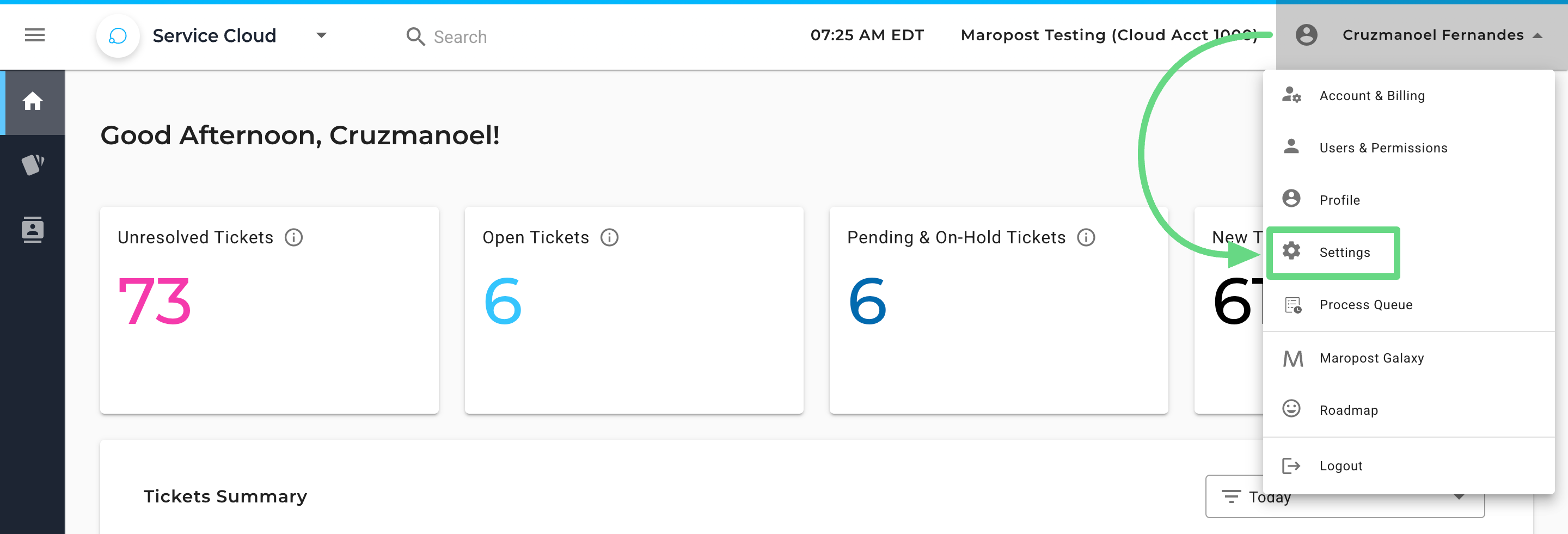
1. To access Tags, click on your account's user profile menu and select Settings from the dropdown list.
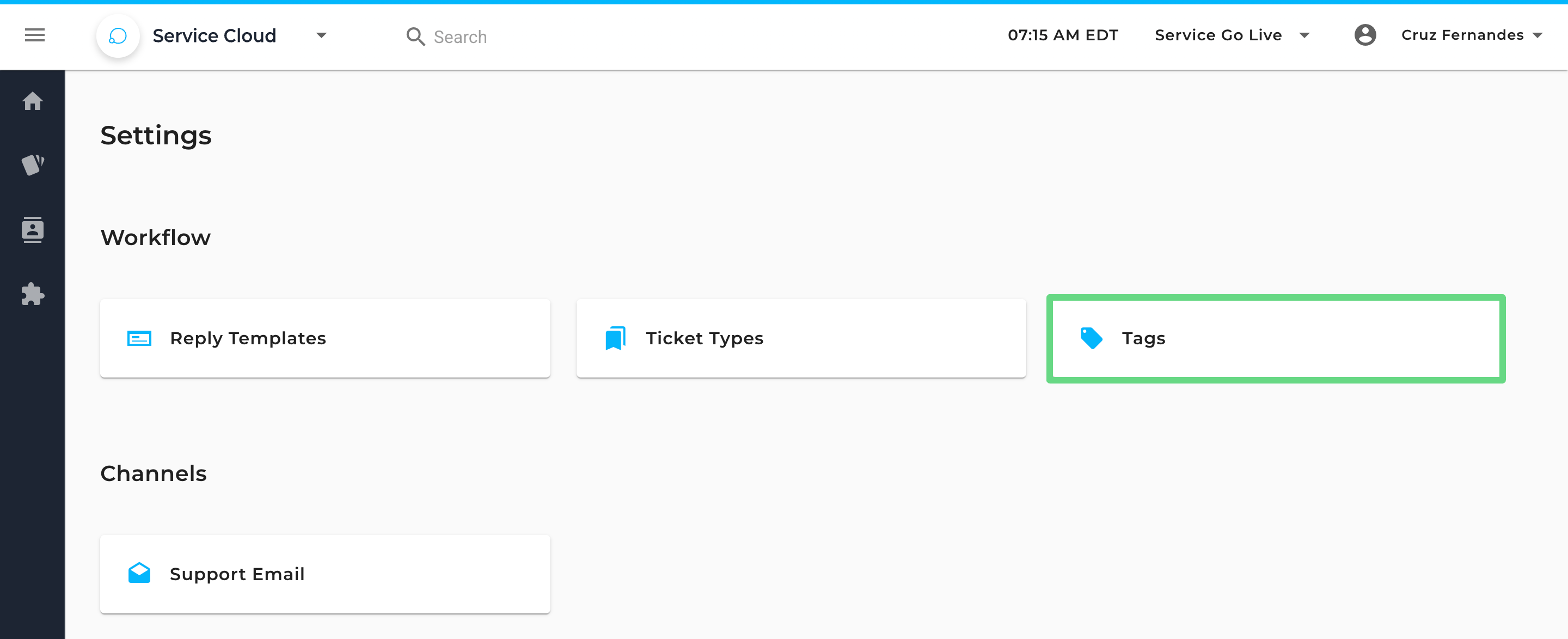
2. Then, choose Tags.
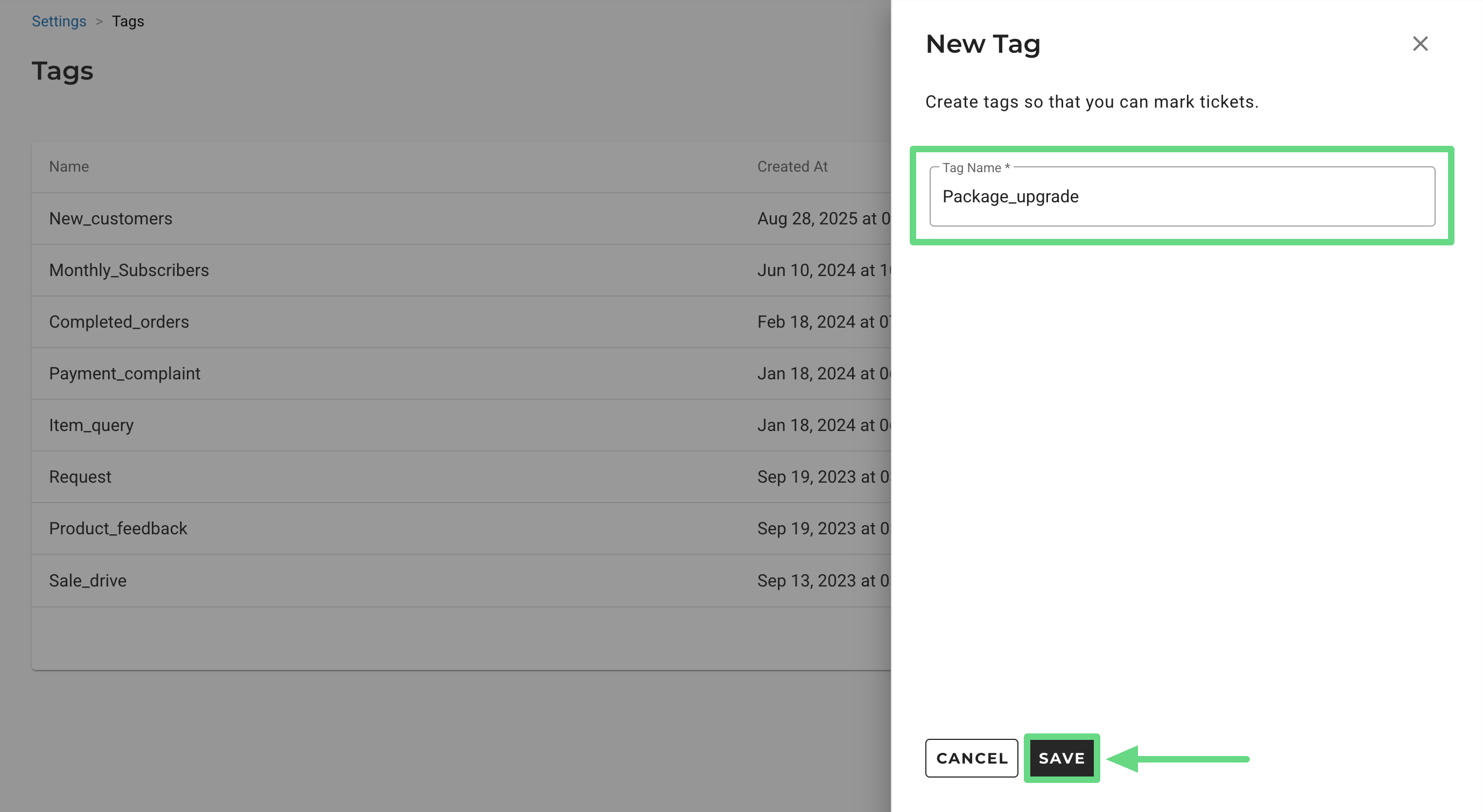
3. On the Tags page, click New Tag. In the New Tag dialog box, enter the name for the tag and click Save.
Adding Tags to Tickets
Once a tag is created, it can be added to as many tickets as you need. You can also add multiple tags to a ticket.
To add a tag to a ticket, do the following:
1. In Navigation, click Tickets, and then on the Tickets page, click the ticket# or subject to go to the single-ticket view.
2. On the ticket view, from the Tags drop-down list, select the tags that you want to add to the ticket.

Searching for Tickets Based on Tags
Using the Tags filter on the Tickets page, you can search for tickets associated with specific tags. The Tags filter enables you to choose multiple tags for filtering and can also be used with other filter options (such as agents, priority, channel, type, and so on).
